Data Representation Explained: Your GCSE & A-Level Guide
You're probably here for one of two reasons. Either the exam is getting uncomfortably close and “data representation” still feels like a foggy topic full of 1s, 0s, and weird file sizes, or you already get the basics and want the kind of explanation that turns marks from “maybe” into “locked in”.
Good. This topic is one of the most exam-friendly parts of Computer Science once it clicks. The trick is seeing that all the bits of the topic fit together. Binary, hex, text encoding, images, sound, compression, parity. They're not random facts. They're all answers to one question: how do computers store real-world information using electrical states?
That's why this matters. Not just because it comes up in AQA, OCR, and Edexcel papers, but because it explains how your phone stores a photo, how Spotify streams a song, and why an examiner keeps asking you to convert 45 into binary when no normal person does that for fun.
From Pixels to Playlists What Is Data Representation
Your phone makes everything look smooth. You tap a playlist, a song starts. You open Snapchat, an image appears. You type a message, your friend gets words and emojis, not a pile of numbers. Underneath all that, though, the machine is doing something much less glamorous.
A computer doesn't understand photos as “a sunset” or music as “your running playlist”. It handles data representation, which means turning text, images, sound, and numbers into forms a computer can store, process, and send.
The reason is simple. Computer hardware works with physical states, usually something like on/off, high/low, true/false. That's why binary matters so much. It matches the way machines work.
The real problem computers have to solve
Humans deal in meaning. Computers deal in patterns.
If you look at the letter A, you instantly recognise it. A computer needs a code for it. If you hear a drum beat, you hear sound. A computer needs a way to sample and store that sound as values. If you look at a photo, you see faces, colours, and shapes. A computer sees a grid of pixel data.
Practical rule: Data representation is just the translation layer between the real world and the computer's world.
That's why exam boards love this topic. It tests whether you understand the translation, not whether you can memorise random definitions.
Why this matters beyond the exam
If you ever build dashboards, reports, or revision tools, how data is represented changes what people think they're seeing. In UK organisations, especially where dashboards support education or operational reporting, teams often discover that the biggest issue isn't the chart itself but the pipeline feeding it. Once data is centralised, they still need secure access controls, auditable transformation steps, and reliable data collection, because weak input data shows up as weak output insight. That point is discussed in this piece on selecting data visualization software, which is useful if you want to connect school-level theory to real reporting systems.
For revision, what you want is repeated practice with the exact kind of questions your board asks. That's where tools built for AI Powered Revision can help, especially when you need to drill binary, hex, and file size questions without wasting time on topics that won't show up.
Speaking the Computer's Language Binary and Hex
Binary is where some students panic because it looks alien. It isn't. It's just counting with fewer symbols.
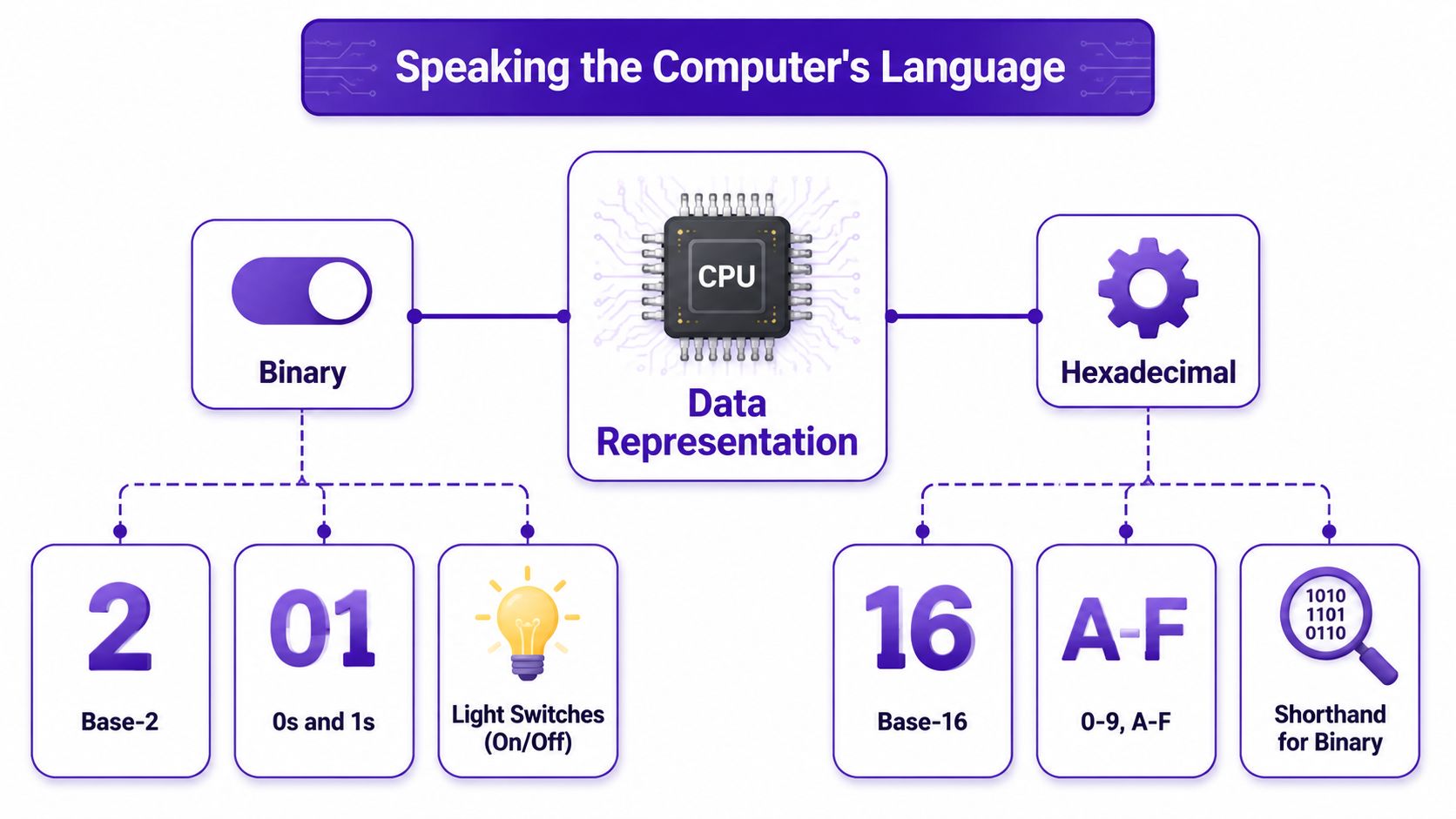
In denary or decimal, you use ten digits: 0 to 9. In binary, you use only 0 and 1. That's it. Two symbols, because computer circuits are built around two clear states.
Binary as light switches
Think of binary like a row of light switches. Each switch can be off or on.
- Off means 0
- On means 1
Now label each switch with a place value. In binary, the columns go up in powers of 2:
| Place value | 8 | 4 | 2 | 1 |
|---|---|---|---|---|
| Binary digit | 1 | 0 | 1 | 1 |
That gives you 1011. To work out the value, add the columns that are switched on:
- 1 in the 8 column = 8
- 0 in the 4 column = 0
- 1 in the 2 column = 2
- 1 in the 1 column = 1
Total = 11
That's the whole idea. Binary numbers look strange at first, but the logic is clean.
Bits and bytes without the waffle
A bit is a single binary digit. One 0 or one 1.
A byte is a group of 8 bits.
Examiners like these terms because they appear in storage, memory, character encoding, images, and sound. If you mix up bit and byte, file size questions go downhill fast.
A bit is one switch. A byte is a row of eight switches.
That analogy works because it keeps the scale clear in your head.
Why hex exists
Binary is accurate, but it gets long very quickly. Writing something like 110101111001 can be annoying and easy to misread. That's why computer scientists often use hexadecimal, usually called hex.
Hex is base 16. It uses:
- 0 to 9
- A to F, where A means 10, B means 11, up to F meaning 15
The clever bit is that 4 binary digits map exactly to 1 hex digit.
| Binary | Hex |
|---|---|
| 0000 | 0 |
| 0001 | 1 |
| 0010 | 2 |
| 0011 | 3 |
| 0100 | 4 |
| 0101 | 5 |
| 0110 | 6 |
| 0111 | 7 |
| 1000 | 8 |
| 1001 | 9 |
| 1010 | A |
| 1011 | B |
| 1100 | C |
| 1101 | D |
| 1110 | E |
| 1111 | F |
A quick example that usually clears it up
Take the binary number 10111100.
Split it into groups of four:
1011 1100
Now convert each group:
- 1011 = B
- 1100 = C
So 10111100 = BC in hex
That's why hex is often described as shorthand for binary. It's not a totally different beast. It's a compact way of writing the same data.
What examiners usually want
When a paper asks about binary or hex, it's usually targeting one of these skills:
- Read place values correctly
- Convert between decimal and binary
- Convert binary to hex by grouping into 4s
- Explain why hex is used
If they ask why hex is useful, keep it crisp:
- It's shorter than binary
- It's easier for humans to read
- It reduces copying mistakes
That answer gets further than a rambling paragraph.
How Computers Understand Text and Emojis
Numbers are easy to imagine in a computer. Text feels weirder. How does a machine know the difference between A, ?, £, and 😂?
The answer is character encoding. Each character is given a number. The computer stores the number, and software interprets that number as a character.
ASCII first
ASCII was one of the early character sets used to represent text. The key idea is simple: every character has a code.
So instead of storing “A” as some magical letter object, the computer stores the number assigned to A in that encoding system.
That works nicely for basic English text, punctuation, and control characters. It's tidy and very exam-friendly.
Where ASCII starts to struggle
ASCII is fine until the world gets bigger than a narrow set of characters.
What if you want accented letters? What if you need Arabic, Hindi, or Mandarin? What if someone sends an emoji? ASCII wasn't built for that range.
That's where Unicode comes in. Unicode is designed to represent a much wider set of characters across languages and symbols. In many courses, you'll meet UTF-8 as a common way Unicode characters are encoded.
| Feature | ASCII | Unicode (UTF-8) |
|---|---|---|
| Main purpose | Basic text representation | Wide character representation across languages and symbols |
| Character range | Limited | Much broader |
| Good for | Simple English text | Global text, mixed languages, emojis |
| Emoji support | No | Yes |
| Modern web use | Limited | Common |
The exam answer that gets marks
If the question says, “Explain why Unicode was introduced,” don't drift off into tech history. Answer the actual problem.
- ASCII was limited
- It couldn't represent enough characters for global communication
- Unicode allows many more characters, including symbols from different languages and emojis
That's the logic chain.
If ASCII is a small classroom register, Unicode is the full school database.
That analogy sticks because it shows scale without needing a load of technical jargon.
If you're revising this alongside programming and systems topics, it helps to organise practice by topic rather than by textbook chapter. A bank of GCSE and A-Level subjects can make that easier when you're jumping between representation, architecture, and cybersecurity.
Creating Pictures and Sounds with Binary
Data representation becomes tangible. Photos and music seem rich and continuous, but the computer still has to reduce them to binary.
That reduction doesn't mean “make it bad”. It means “store it in a structured way”.
Images as grids of pixels
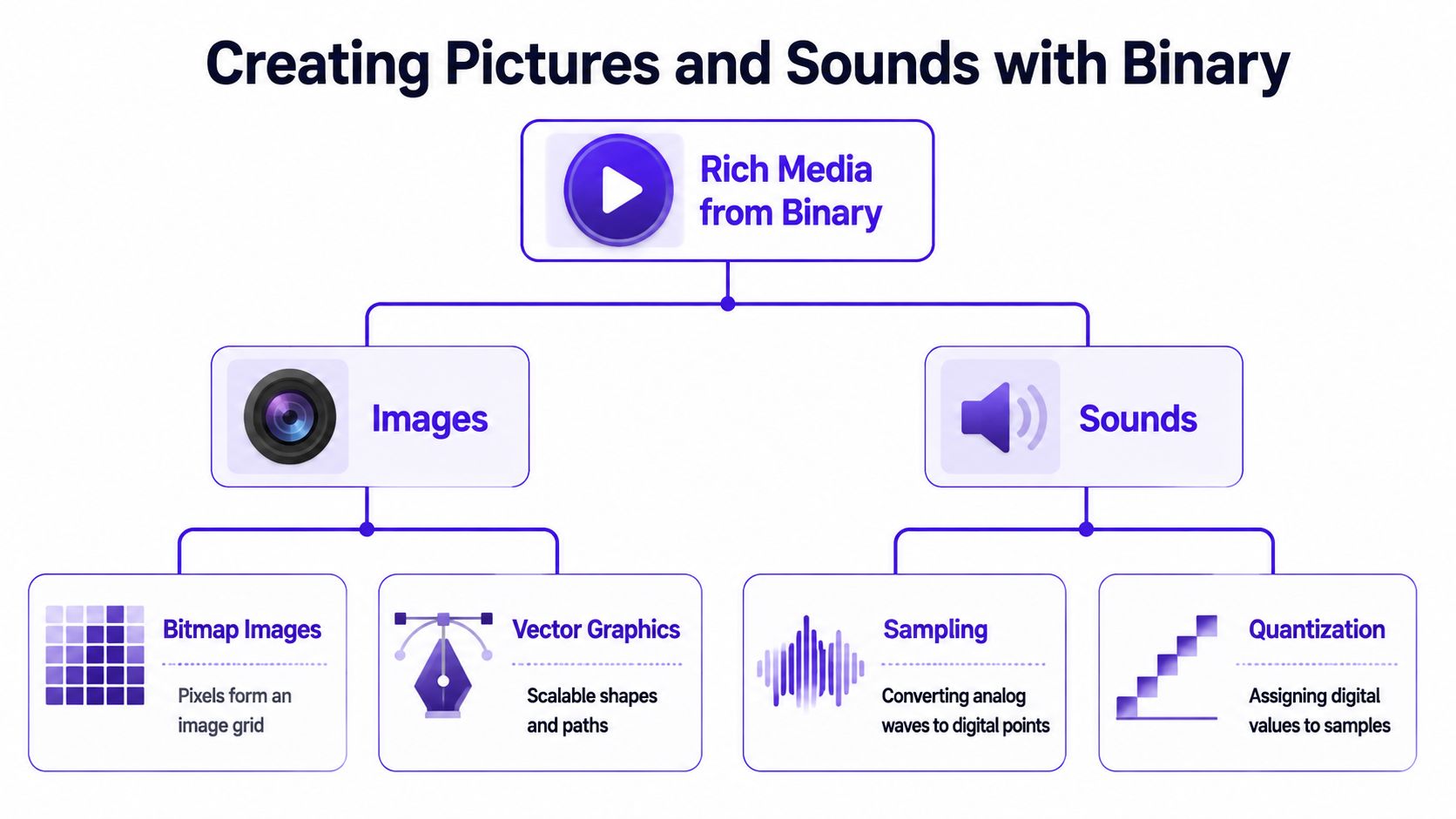
A bitmap image is a grid. Each tiny square is a pixel. Each pixel stores colour information.
Imagine painting by numbers, but every square has a colour code instead of a paint pot. The computer doesn't store “cat photo”. It stores a huge list of pixel values laid out in a grid.
Two terms matter here:
- Resolution means how many pixels make up the image
- Colour depth means how many bits are used to store the colour of each pixel
Higher resolution gives more detail because there are more pixels. Higher colour depth gives more possible colours because each pixel can store more information.
The trade-off students need to remember
This is a favourite exam idea. Better quality usually means bigger file size.
If an image has:
- more pixels
- more bits per pixel
then the file needs more storage.
That trade-off matters in real design work too. If someone is making social posts or revision graphics, colour choices and visual style affect how assets feel on screen. Something like aqua color for carousel designs can help with design consistency, but underneath the nice visuals, the image still comes down to pixel data and colour values.
Vector graphics are different
Not every image is stored as a bitmap. Vector graphics use mathematical instructions for shapes and lines.
That means a circle can be stored as “draw a circle here with this radius and this colour” instead of colouring loads of individual pixels. Vectors are useful for logos and icons because they scale cleanly.
For exam purposes, the headline difference is simple:
- Bitmap = pixel-based
- Vector = shape-based
Sound as samples
Sound starts as an analogue wave. Computers need to turn that smooth wave into digital data. They do this by sampling it.
Think of a flipbook. If you take enough snapshots, motion looks smooth. Digital sound works in a similar way. The computer takes lots of snapshots of the wave and stores the values.
Two key terms matter:
- Sample rate means how often the sound is sampled
- Bit depth means how much detail is stored for each sample
Higher sample rate captures the wave more often. Higher bit depth stores each snapshot more precisely.
Why quality and file size fight each other again
This is the same pattern as images, just in a different form.
If you sample more often and store more detail in each sample, audio quality improves. But the file gets larger.
That's why revision guides often pair image and sound questions together. They're testing the same habit of thought: more detail needs more data.
A simple memory hook
Use this when you're stuck:
- Images are lots of coloured squares
- Sound is lots of measured wave points
Different media, same exam idea. Real-world stuff gets sliced into manageable binary data.
Master the Conversions Binary Hex and Decimal
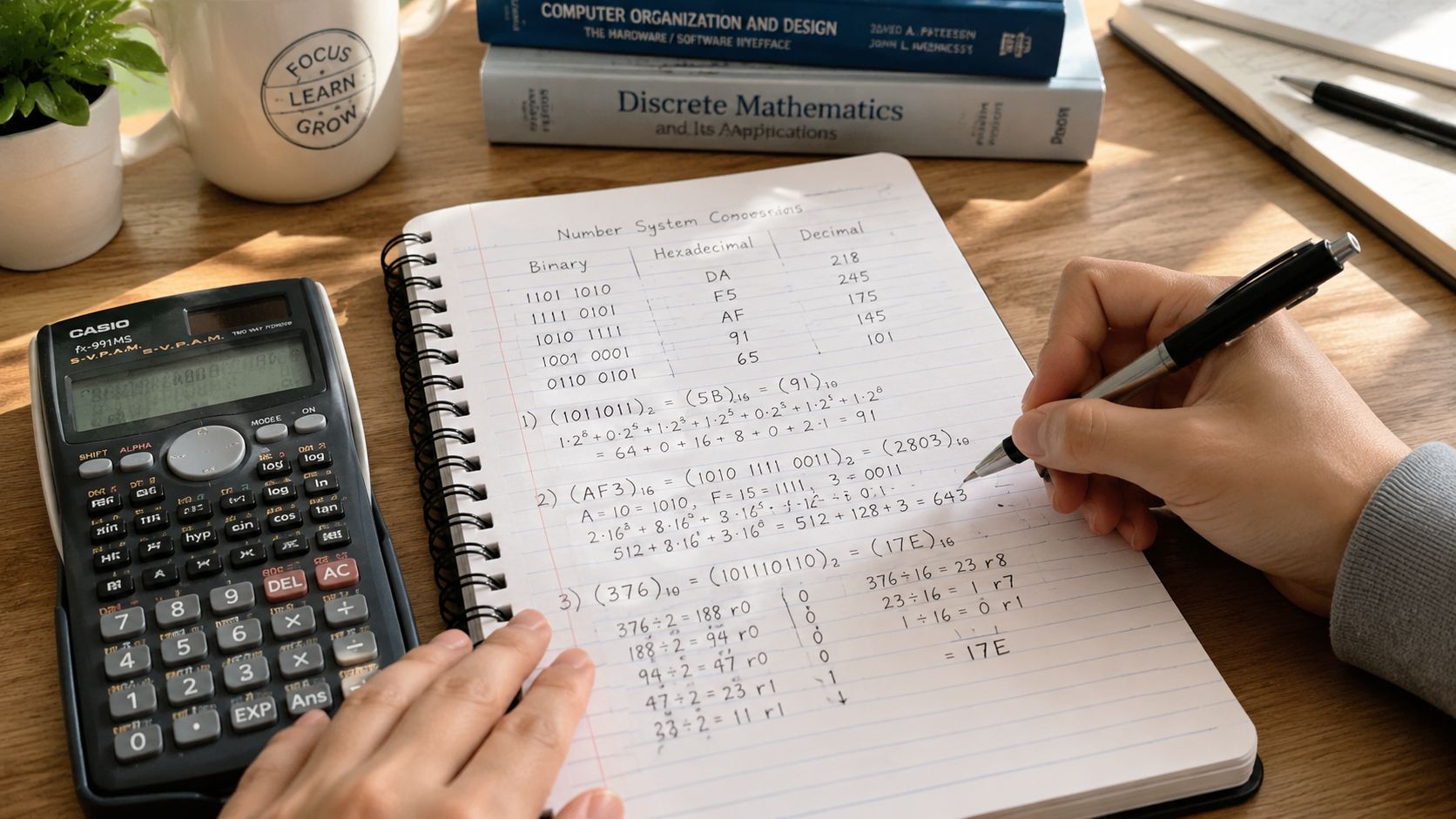
This is the bit that wins easy marks if you stay calm and use a method. Don't try to do conversions by instinct. Under pressure, instinct gets messy. Method gets marks.
Decimal to binary
Use repeated division by 2.
Worked example: convert 13 to binary.
- 13 ÷ 2 = 6 remainder 1
- 6 ÷ 2 = 3 remainder 0
- 3 ÷ 2 = 1 remainder 1
- 1 ÷ 2 = 0 remainder 1
Now read the remainders from bottom to top:
1101
So 13 in decimal = 1101 in binary
Practice one
Convert 22 to binary.
If you want to check your method after trying it yourself, quiz-style practice with UK exam board aligned quizzes is useful because the format feels closer to what you'll see in school assessments.
Binary to decimal
Use place values and add.
Worked example: convert 10110 to decimal.
Write the place values underneath:
| Binary digit | 1 | 0 | 1 | 1 | 0 |
|---|---|---|---|---|---|
| Place value | 16 | 8 | 4 | 2 | 1 |
Now add the values where there is a 1:
- 16
- 4
- 2
Total = 22
So 10110 in binary = 22 in decimal
Exam shortcut: Write the place values above the bits before you add. It reduces silly mistakes.
Binary to hex
Group into 4-bit chunks from the right.
Worked example: convert 11101010 to hex.
Split it:
1110 1010
Then convert each group:
- 1110 = E
- 1010 = A
So 11101010 = EA
If the number doesn't split neatly into groups of four, add leading zeroes on the left. That doesn't change the value.
Example: 101101 becomes 0010 1101
That converts to:
- 0010 = 2
- 1101 = D
So 101101 = 2D
Hex to binary
This one is usually the fastest. Convert each hex digit into its 4-bit binary equivalent.
Worked example: convert 3F to binary.
- 3 = 0011
- F = 1111
So 3F = 00111111
Here's a quick walkthrough if you want to see the process modelled before doing your own questions:
Hex to decimal
Multiply each digit by its place value in base 16.
Worked example: convert 2A to decimal.
In hex, the place values are powers of 16:
- 2 is in the 16s column
- A means 10 in the 1s column
So:
- 2 × 16 = 32
- 10 × 1 = 10
Total = 42
So 2A in hex = 42 in decimal
The pattern to remember
Each conversion has its own clean move:
- Decimal to binary uses repeated division
- Binary to decimal uses place values
- Binary to hex uses groups of 4 bits
- Hex to binary uses direct substitution
- Hex to decimal uses powers of 16
If you keep the method consistent, you'll pick up marks even when the number looks ugly.
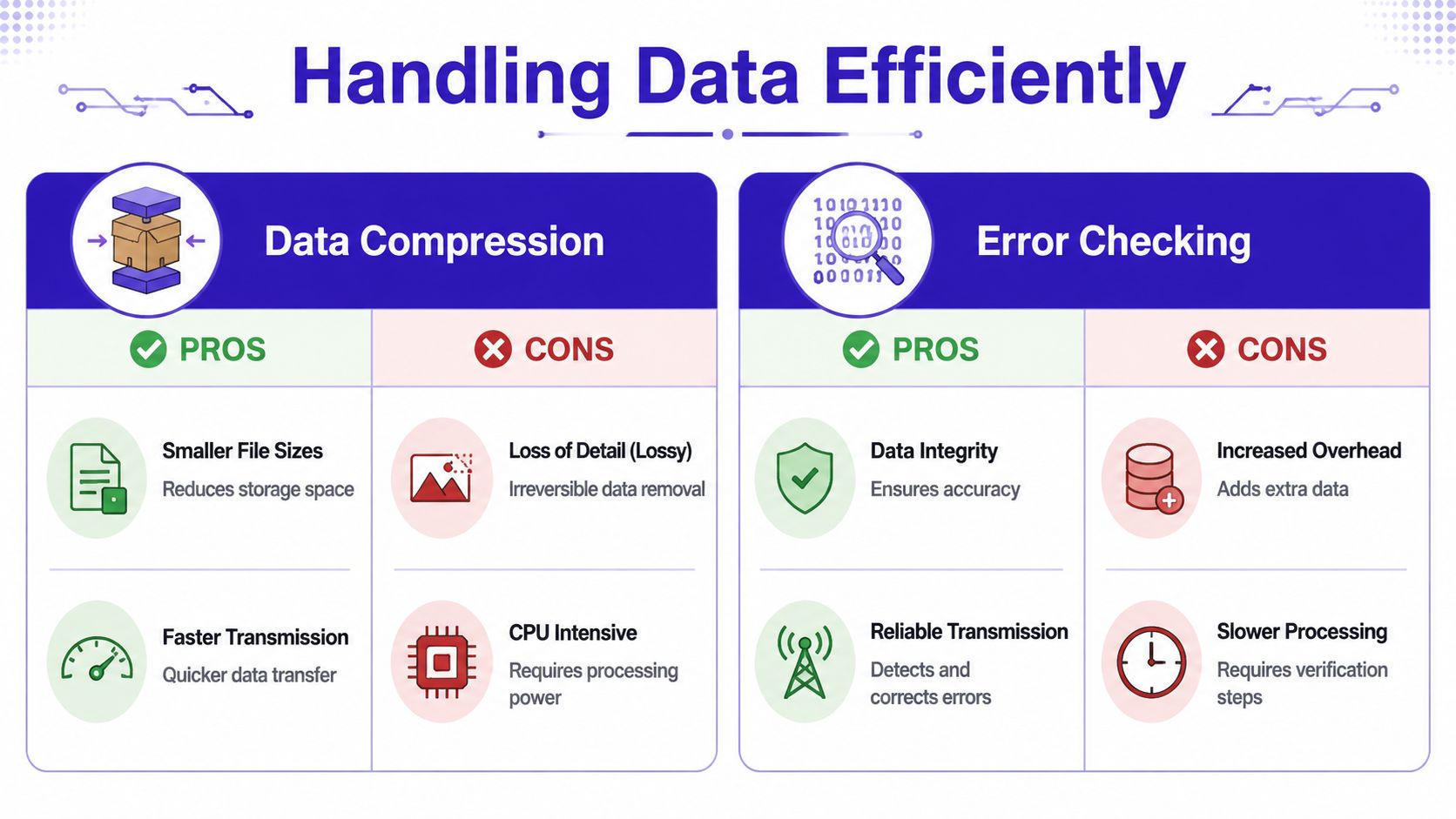
Handling Data Efficiently Compression and Error Checking
Once data has been represented, computers still have two practical problems. They need to store or send it efficiently, and they need to know whether it got corrupted on the way.
That's where compression and error checking come in.
Lossless and lossy compression
Compression shrinks file size. There are two main types students need to know.
Lossless compression keeps all the original data. When you decompress the file, you get the full original back.
Lossy compression removes some data permanently. You get a smaller file, but not a perfect reconstruction.
A good analogy is note-taking.
- Lossless is like writing a message in shorthand so you can rebuild the exact sentence later.
- Lossy is like summarising a chapter. You keep the main idea, but some detail is gone.
That's why a ZIP file and a JPEG are not doing the same job.
When each type makes sense
| Type | Best when | Main drawback |
|---|---|---|
| Lossless | You need the original data preserved | File size reduction is more limited |
| Lossy | Smaller files matter more than perfect accuracy | Some detail is permanently removed |
This applies to practical scenarios. If someone needs to decrease large video file size, they're often balancing quality against storage and transfer needs. That's the same judgement your exam question is testing, just in a practical context.
Parity bits and error checking
A parity bit is a simple error detection method. You take a byte and add one extra bit.
With even parity, the total number of 1s must be even.
With odd parity, the total number of 1s must be odd.
Suppose you send the byte:
10110010
Count the 1s. There are four, which is already even. So for even parity, the extra bit would be 0.
If one bit flips during transmission, the total number of 1s changes. The receiving computer can check the parity and spot that something went wrong.
Parity can tell you that an error happened. It can't always tell you exactly which bit is wrong.
That sentence is worth remembering because examiners love asking students to confuse detection with correction.
How to Ace Data Representation Exam Questions
You're in the exam. A 4-mark question asks you to explain why Unicode was introduced, and a 5-mark question asks you to calculate an image file size. Both topics look familiar, but one answer needs clear reasoning and the other needs a clean method. That is where students drop marks. They know the topic, but they answer the wrong way.
Data representation questions are very predictable once you spot the pattern. AQA, OCR, and Edexcel all test the same core skill: can you recognise what the examiner wants, then show it in the format that earns marks?
Three common question stems
Calculate the file size of an image
Use this scaffold:
- Write the formula your course expects.
- Work out the total number of pixels.
- Multiply by the colour depth.
- Convert bits, bytes, KB, or MB only if the question asks.
This works like showing your steps in maths. If the final answer is wrong but the method is clear, you can still pick up marks.
Explain why Unicode was introduced
Use this scaffold:
- State the problem with ASCII.
- Explain that more characters were needed for more languages.
- Add examples such as symbols or emojis.
Examiners are usually looking for a chain of reasoning, not a one-line definition. If the command word is explain, give cause and effect.
Convert a number between decimal, binary, and hex
Use this scaffold:
- Identify the conversion straight away.
- Use the correct method.
- Show each step clearly.
Binary and hex conversions are like working through a route on a map. If you skip the turns and only write the destination, the examiner cannot award method marks.
What stronger answers do
Stronger answers feel controlled. They are easy to read, use the right vocabulary, and answer the command word directly.
- Use precise terms: bit, byte, pixel, sample, colour depth, parity
- Match the command word: calculate means show working, explain means give linked reasons, describe means say how it works
- Keep your layout clean: line up conversions, label units, and avoid cramming working into one messy line
One more thing matters from an exam point of view. Data representation is a topic where small slips cause big mark losses. Writing byte when you mean bit is like writing metres when the question asked for centimetres. The idea might be close, but the mark scheme will not treat it as correct.
A good revision habit is to group past questions by type, not just by topic. Put all binary conversions together. Put all Unicode questions together. Put all file size questions together. After a while, the wording changes less than you expect, and your response starts to become automatic.
For final prep, use GCSE Past Papers to spot patterns in how your board phrases these questions. Data representation comes back again and again. The wording changes. The method usually doesn't.
Ready to master this topic?
Practise with quizzes, blurt exercises and exam questions on MasteryMind.
7 days Premium · Then free forever · No card, no charge