Pearson Edexcel · GCSE · Computer Science
Topic 2: Data
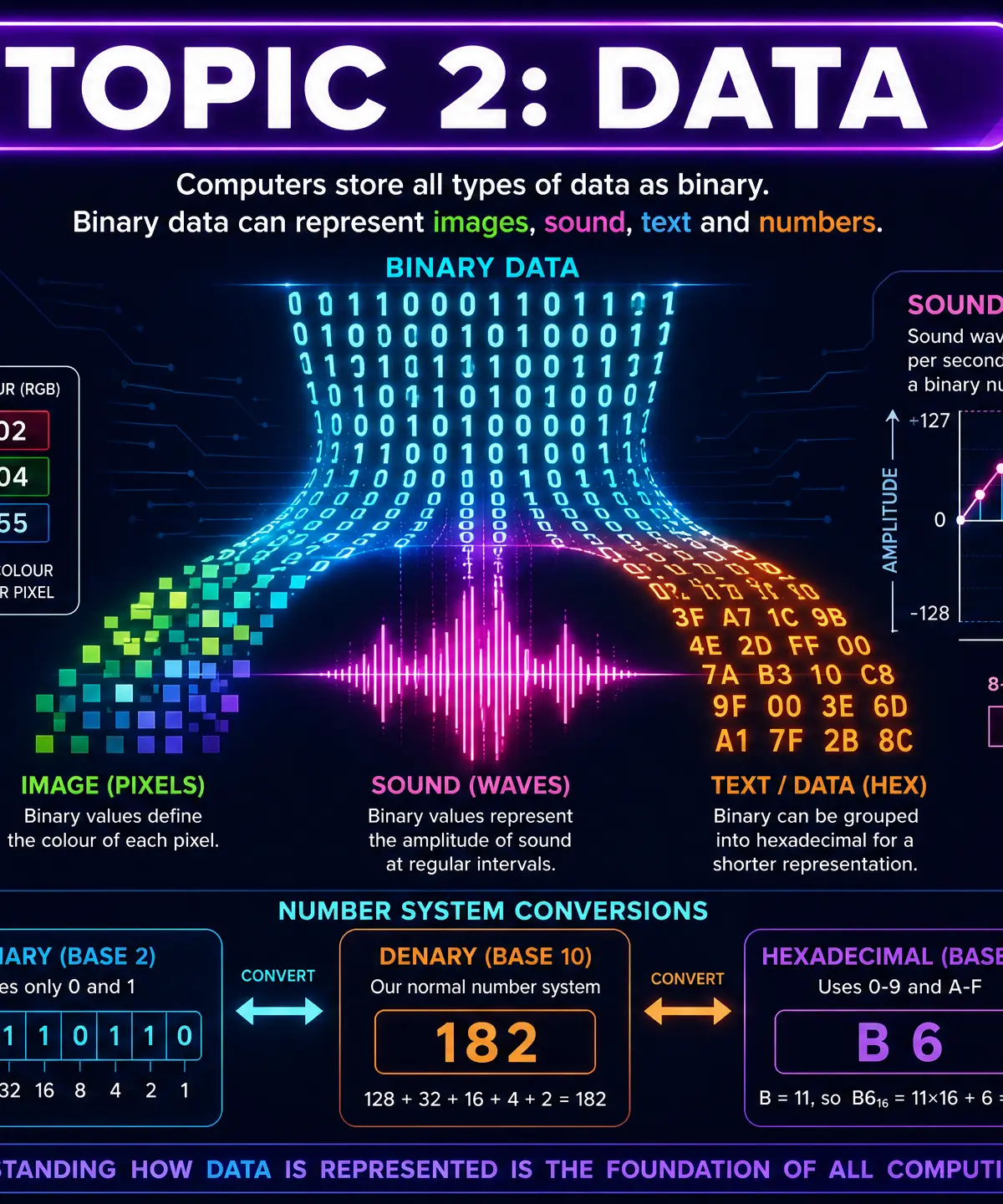
This topic demystifies how computers store and process every piece of information using only zeros and ones. Mastering data representation is essential for scoring highly in your GCSE Computer Science exam, as it forms the foundation for understanding computer architecture, networks, and programming.
- 6 min read
- 3 worked examples
- 5 practice questions
- 6 key terms
Study Notes
Overview
At its core, Computer Science is the study of how we manipulate data to solve problems. But before a computer can manipulate data, it must be able to store it. This topic, Data Representation, explores exactly how that happens.
Why is this important? Because a computer's central processing unit (CPU) is essentially a massive collection of microscopic electronic switches. These switches can only be in one of two states: ON or OFF. Therefore, every single piece of data—whether it's a high-definition photograph, a complex 3D game, a text document, or a hit song—must ultimately be translated into a series of ON and OFF signals. We represent these states using the numbers 1 (ON) and 0 (OFF). This base-2 number system is called binary.
In your exam, you will be tested on your ability to convert between different number systems (binary, denary, and hexadecimal), calculate the file sizes of images and sound files, perform binary arithmetic, and explain the principles of data compression. This topic connects heavily to Computer Systems (how the CPU processes these binary instructions) and Networks (how binary data is transmitted across the internet).

Key Concepts
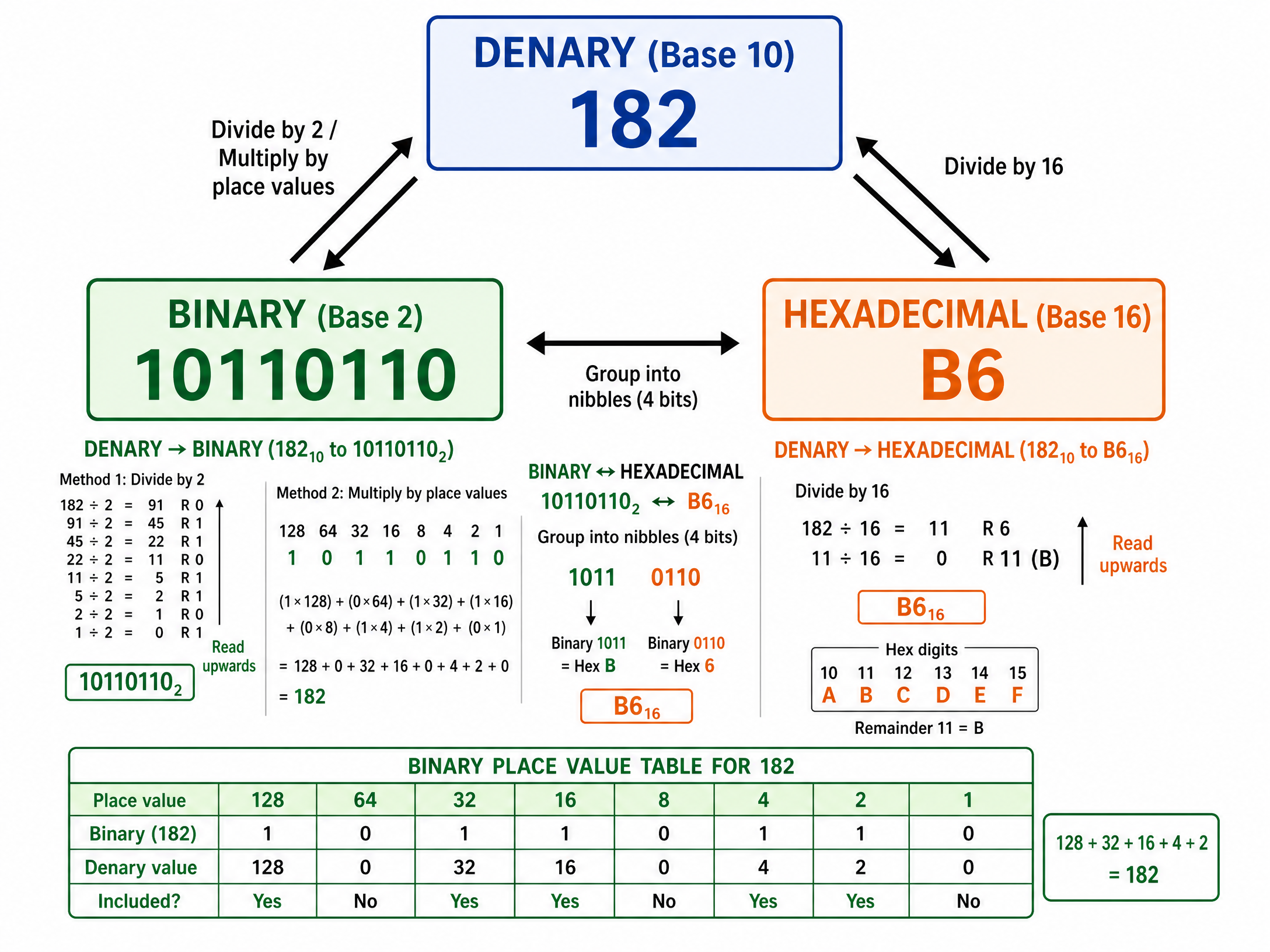
Concept 1: Number Systems (Denary, Binary, and Hexadecimal)
Humans naturally use denary (base-10) because we have ten fingers. Denary uses ten digits (0-9), and each column represents a power of 10 (1s, 10s, 100s, 1000s).
Computers use binary (base-2) because they are built from electronic circuits with two states. Binary uses two digits (0 and 1), and each column represents a power of 2 (1, 2, 4, 8, 16, 32, 64, 128).
Hexadecimal (base-16) is used by computer scientists as a shorthand for binary. It is much easier for humans to read and write "B6" than "10110110". Hexadecimal uses sixteen digits: 0-9, and then the letters A-F to represent the values 10-15.
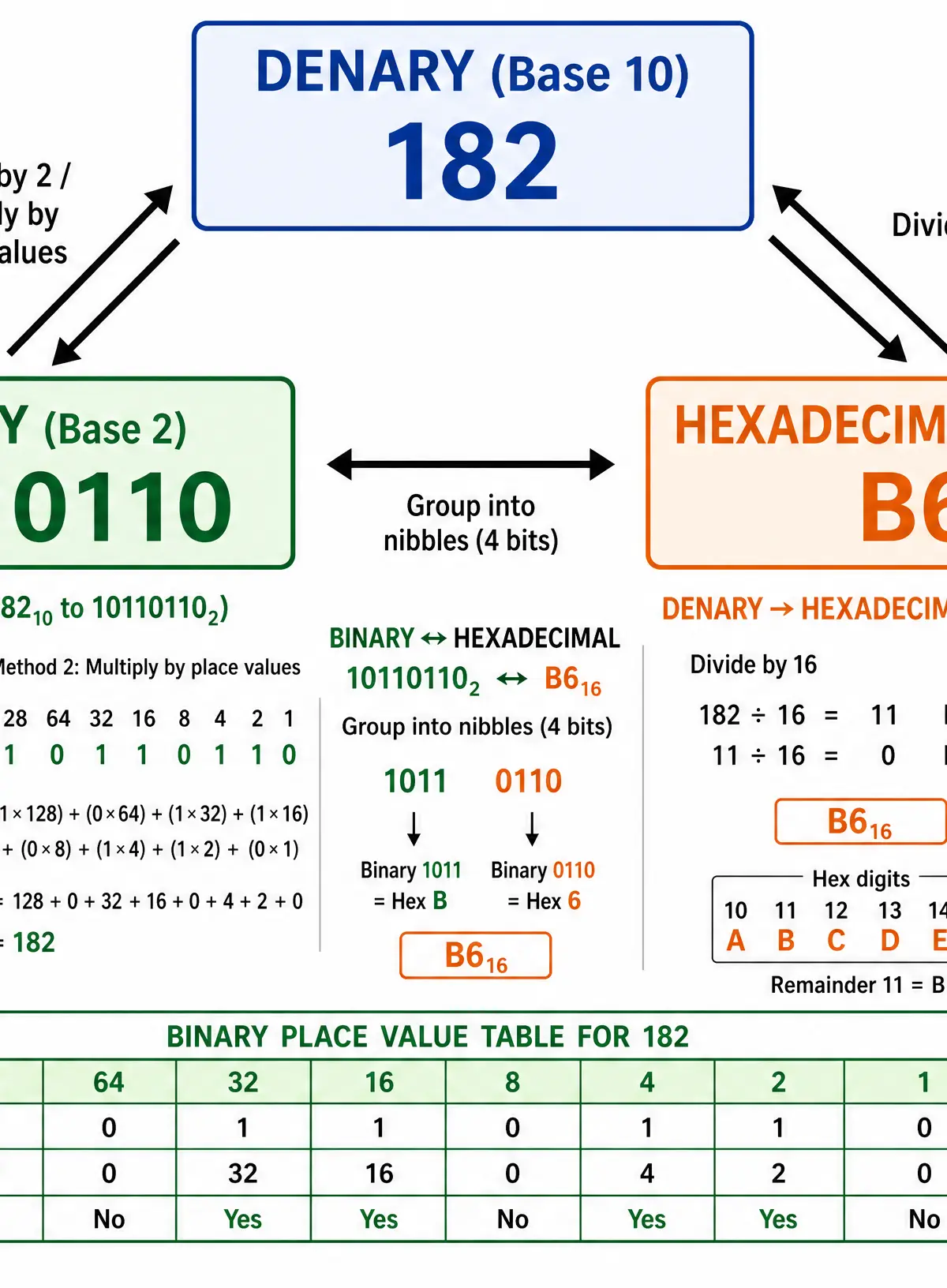
Why it works: To convert binary to denary, simply write the binary number under a place value table and add up the column headings where there is a 1. To convert denary to binary, find the largest power of 2 that fits into the number, subtract it, place a 1 in that column, and repeat with the remainder.
Concept 2: Binary Addition and Shifts
Computers perform arithmetic using logic gates. In your exam, you must be able to add two 8-bit binary numbers together.
The rules are simple:
- 0 + 0 = 0
- 0 + 1 = 1
- 1 + 1 = 0 (carry 1)
- 1 + 1 + 1 = 1 (carry 1)
Overflow Error: If you add two 8-bit numbers and the result requires 9 bits, the extra bit falls off the end and is lost. This is called an overflow error, and it leads to incorrect calculations or system crashes.
A binary shift is a quick way to multiply or divide by powers of 2.
- A logical shift left by one place multiplies the number by 2.
- A logical shift right by one place divides the number by 2 (discarding any remainder).
Concept 3: Representing Images
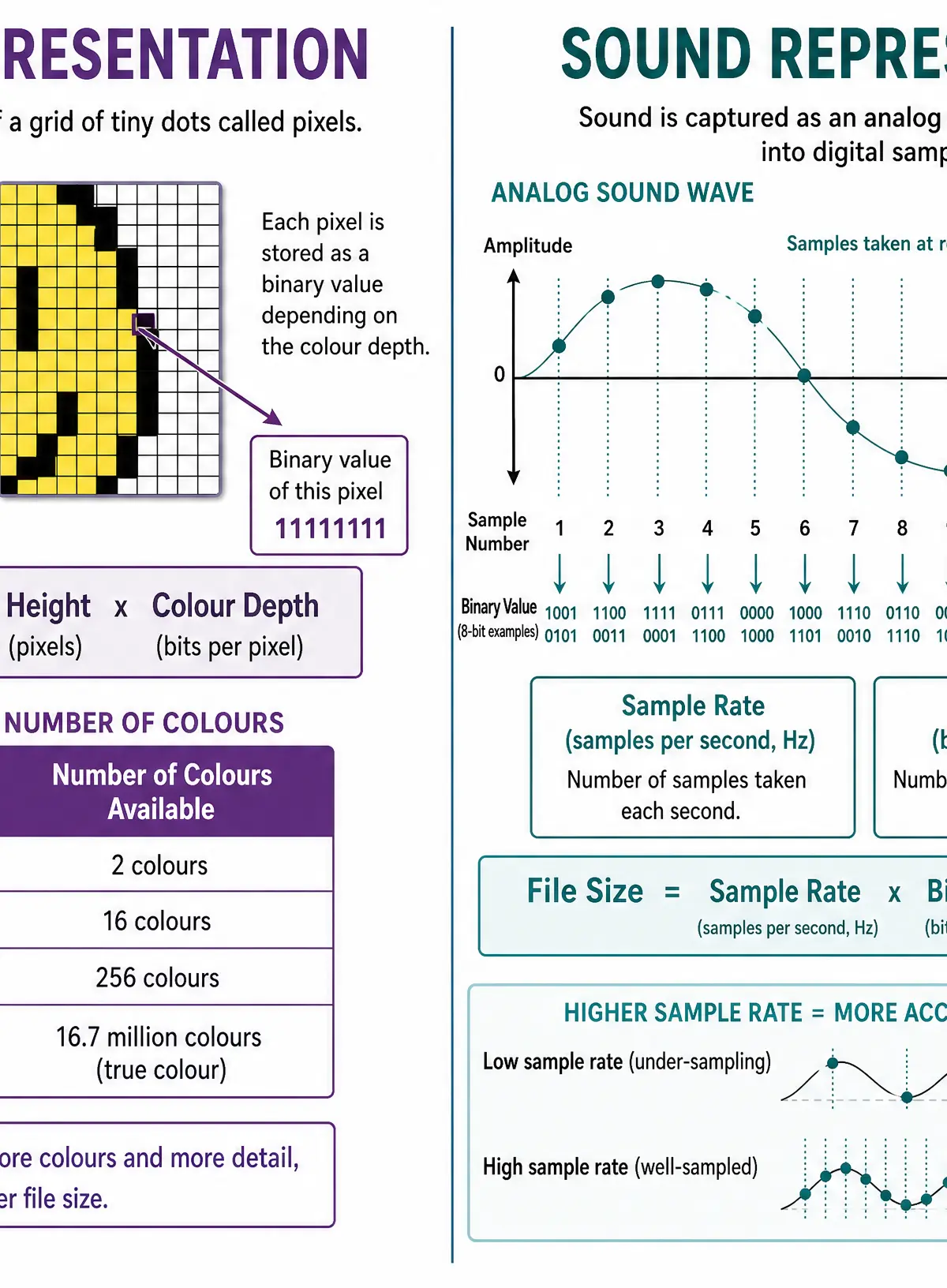
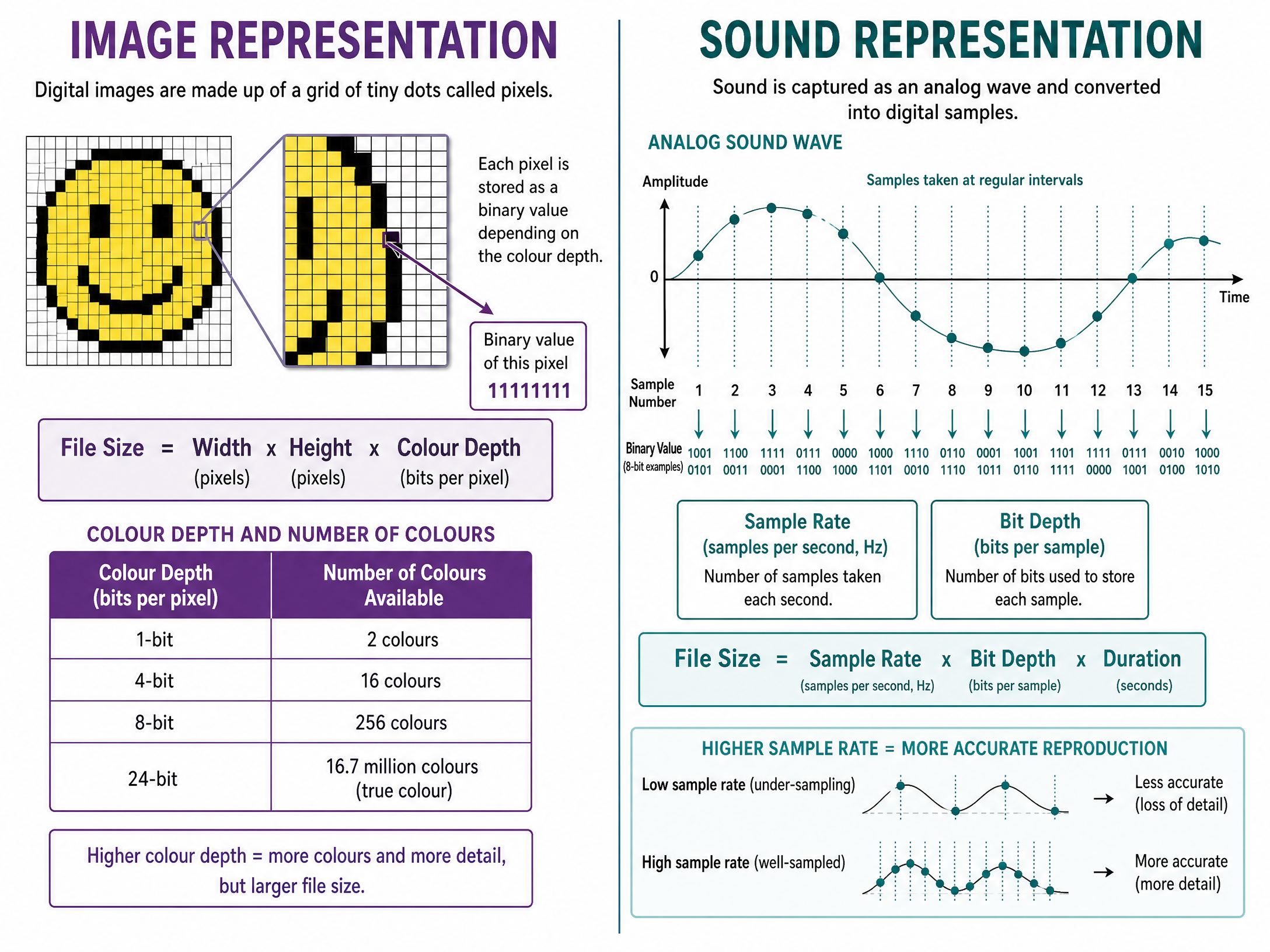
Digital images are divided into a grid of tiny squares called pixels (picture elements). Each pixel is assigned a single colour, and that colour is stored as a binary number.
The colour depth is the number of bits used to store the colour of a single pixel.
- 1-bit colour depth = 2^1 = 2 colours (black and white)
- 8-bit colour depth = 2^8 = 256 colours
- 24-bit colour depth = 2^{24} = 16.7 million colours (True Colour)
Increasing the colour depth improves the quality and realism of the image, but it also increases the file size because more bits are required for every single pixel.
Concept 4: Representing Sound
Sound is naturally an analogue, continuous wave. To store it digitally, an analogue-to-digital converter (ADC) must take samples of the sound wave at regular intervals.
The sample rate is the number of samples taken per second, measured in Hertz (Hz). CD-quality audio has a sample rate of 44,100 Hz (44.1 kHz).
The bit depth (or sample resolution) is the number of bits used to store the amplitude value of each sample. A higher bit depth means the amplitude is measured more precisely.
Increasing either the sample rate or the bit depth will improve the playback quality (making it closer to the original analogue wave) but will increase the file size.
Concept 5: Data Compression
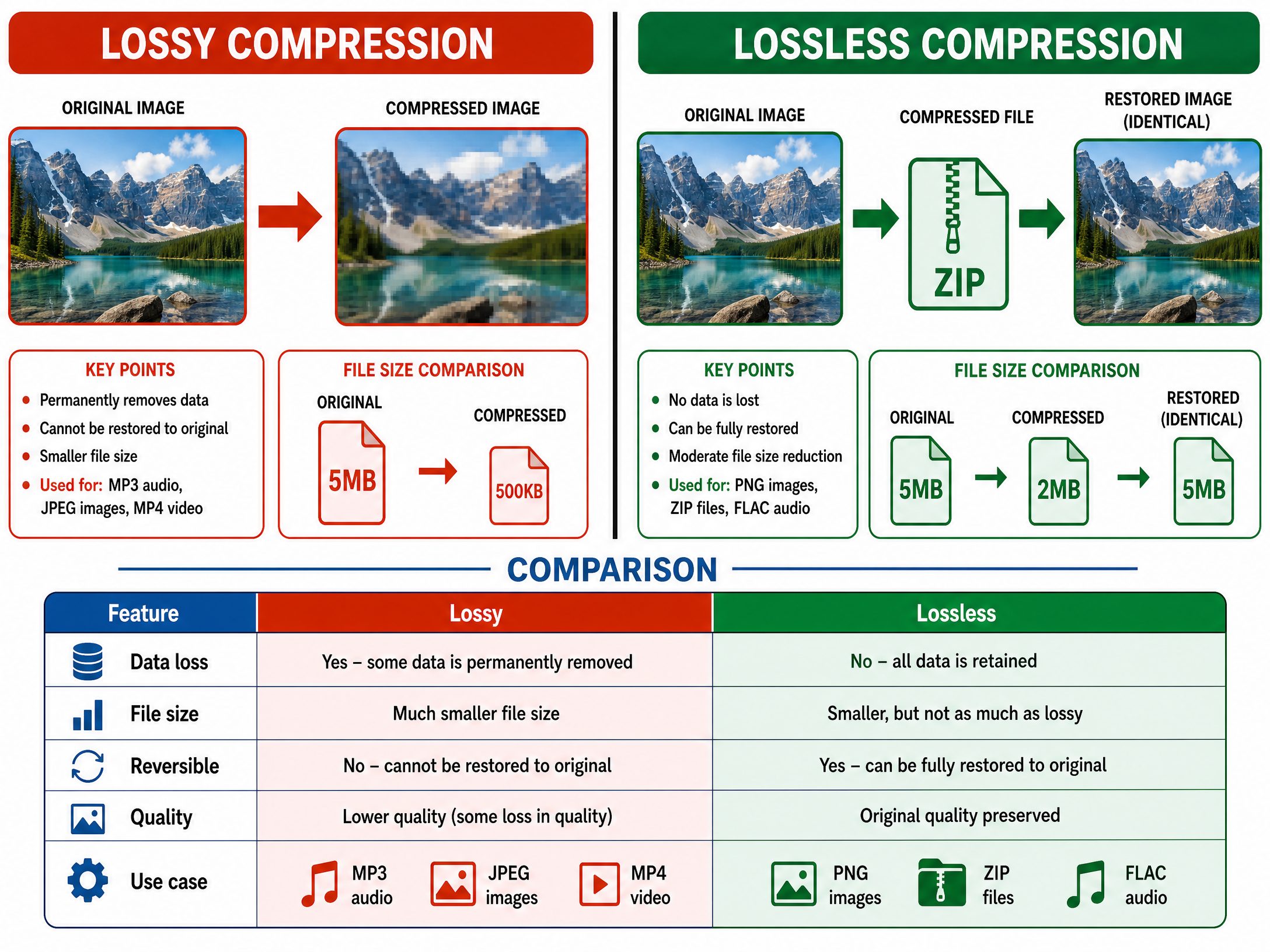
Compression reduces the size of a file so it takes up less storage space and can be transmitted across a network faster.
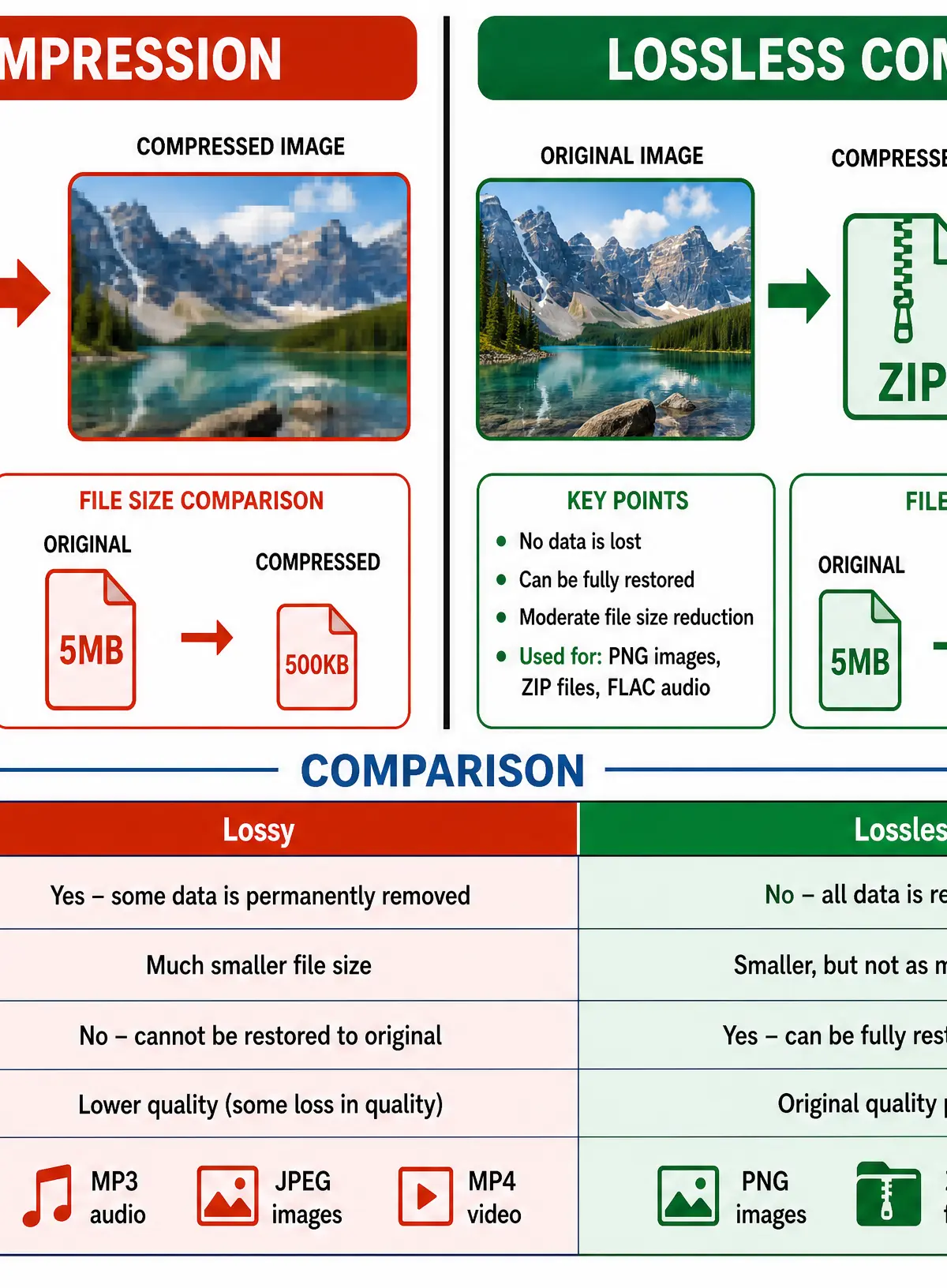
Lossy compression permanently removes data to significantly reduce file size. It is used for images (JPEG), audio (MP3), and video (MP4) where a slight drop in quality is acceptable to human senses. The original file cannot be perfectly reconstructed.
Lossless compression reduces file size without losing any data. It works by finding patterns and replacing them with shorter representations (e.g., Run Length Encoding). It is essential for text documents, executable programs, and ZIP files where losing even a single bit would corrupt the file. The original file can be perfectly reconstructed.
Mathematical/Scientific Relationships
File Size Calculations
Image File Size (in bits):
\text{File Size} = \text{Width (pixels)} \times \text{Height (pixels)} \times \text{Colour Depth (bits)}
(Must memorise)
Sound File Size (in bits):
\text{File Size} = \text{Sample Rate (Hz)} \times \text{Bit Depth (bits)} \times \text{Duration (seconds)}
(Must memorise)
Text File Size (in bits):
\text{File Size} = \text{Number of Characters} \times \text{Bits per Character}
(Must memorise)
Binary Multiples
Examiners require you to use binary multiples (powers of 2) rather than decimal multiples (powers of 10) when calculating file sizes.
- 1 Nibble = 4 bits
- 1 Byte = 8 bits
- 1 Kibibyte (KiB) = 1024 bytes (2^{10})
- 1 Mebibyte (MiB) = 1024 KiB (2^{20})
- 1 Gibibyte (GiB) = 1024 MiB (2^{30})
- 1 Tebibyte (TiB) = 1024 GiB (2^{40})
Note: If you are asked to calculate a file size in kilobytes (KB) in a specific exam board context, check your specification. However, standard computer science practice uses 1024.
Visual Resources
3 diagrams and illustrations
Interactive Diagrams
2 interactive diagrams to visualise key concepts
Conceptual Flow Outline
The process of digitising sound from an analogue wave to a digital file.
Conceptual Flow Outline
Decision tree for selecting the appropriate compression algorithm for an image.
Worked Examples
3 worked examples — open one to explore the question and available guidance.
Practice Questions
Test your understanding — click to reveal model answers
Convert the denary number 105 into 8-bit binary.
Hint: Write out your place value table starting from 128 on the left down to 1 on the right.
Add the following two 8-bit binary numbers: 01011011 and 00110110.
Hint: Remember that 1 + 1 = 0 carry 1, and 1 + 1 + 1 = 1 carry 1.
Convert the hexadecimal number 3F into denary. Show your working.
Hint: Convert the hex to binary first, or multiply the first digit by 16 and add the second digit.
Explain how the file size of a digital image is affected by its colour depth.
Hint: Define colour depth first, then explain the mathematical relationship.
A software company is distributing a new video game. Explain why they would use lossless compression for the game's executable code files, but might use lossy compression for the game's cutscene videos.
Hint: Think about what happens if data is permanently lost from code versus a video.