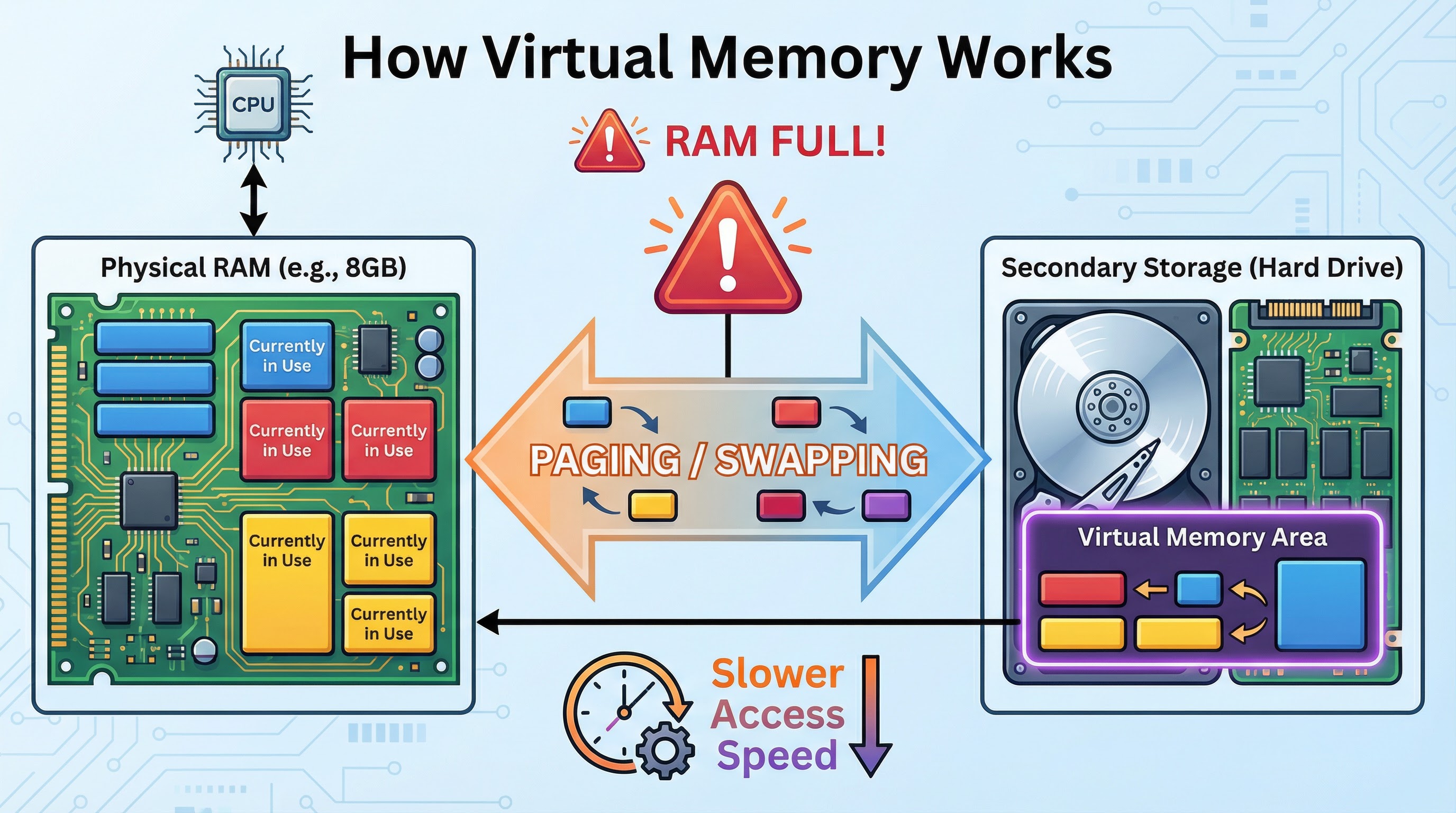
Memory (RAM and ROM) Revision Notes

    Subject: Computer Science | Level: GCSE | Exam Board: OCR

    Master the essentials of computer memory for your OCR GCSE exam. This guide breaks down RAM, ROM, and Virtual Memory with clear explanations, worked examples, and memory hooks to help you secure top marks.

    Revision Notes & Key Concepts

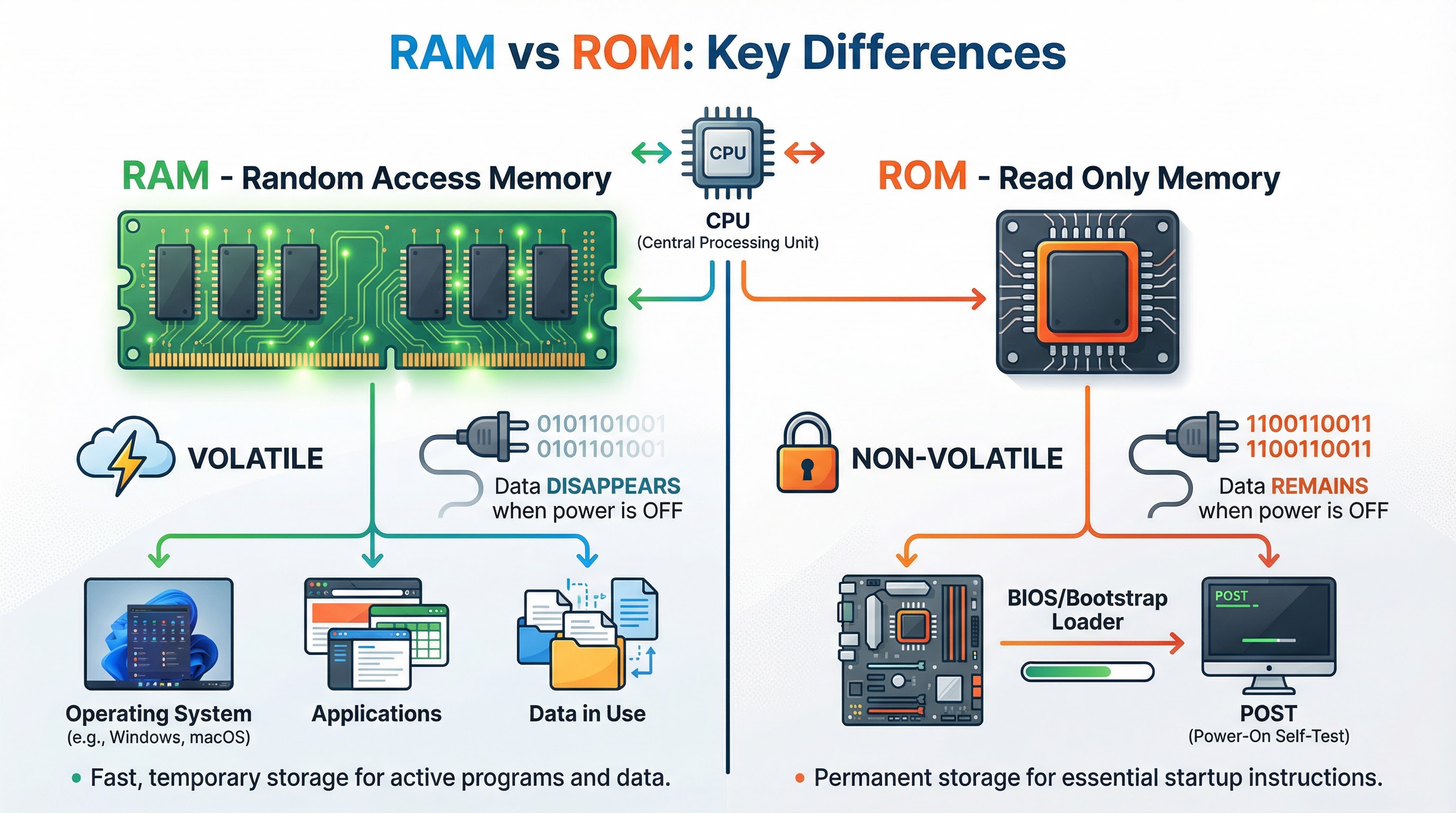
    ## Overview This guide delves into the essential topic of Primary Memory, a cornerstone of the OCR GCSE Computer Science (J277) specification. Understanding the distinction between RAM and ROM is not just about memorizing definitions; it's about grasping how a computer fundamentally operates. This topic forms the bedrock for understanding operating systems, software execution, and system performance. In the exam, expect questions that require you to compare RAM and ROM directly, explain the purpose of each, and analyze the role of Virtual Memory in system stability. A solid grasp here will allow you to build synoptic links to topics like the CPU and secondary storage, earning you credit for a holistic understanding. ![Header image for Memory (RAM & ROM)](https://xnnrgnazirrqvdgfhvou.supabase.co/storage/v1/object/public/study-guide-assets/guide_2e3827ad-e63a-4b86-a0e8-c0d398bbc326/header_image.png) ## Key Concepts ### Concept 1: RAM (Random Access Memory) RAM is the computer's main workspace. Think of it as a busy workbench where a craftsman (the CPU) keeps the tools and materials (data and programs) they are actively using. When you open an application like a word processor or a web browser, it is loaded from the much slower secondary storage (like a hard drive) into the super-fast RAM so the CPU can access it instantly. The most critical characteristic of RAM, and a guaranteed exam point, is that it is **volatile**. This means that as soon as the computer loses power, everything stored in RAM is wiped clean. It's a temporary, high-speed holding area. Credit is given for answers that specifically state RAM stores the Operating System, currently running applications, and the data they are using. **Example**: You are editing a photo. The photo file itself is on your hard drive. But the photo editing software, the photo itself, and every change you make (like adjusting brightness) are all held in RAM. If the power cuts before you save, those changes are lost because RAM is volatile. ![RAM vs ROM: Key Differences](https://xnnrgnazirrqvdgfhvou.supabase.co/storage/v1/object/public/study-guide-assets/guide_2e3827ad-e63a-4b86-a0e8-c0d398bbc326/ram_vs_rom_diagram.png) ### Concept 2: ROM (Read-Only Memory) ROM is the computer's permanent instruction manual. Unlike RAM, it is **non-volatile**, meaning its contents are not erased when the power is turned off. You can only read the instructions from it; you cannot normally write new ones. Its primary, and most crucial, role is to store the **BIOS** (Basic Input/Output System) or **bootstrap loader**. This is the very first program the CPU runs when you turn the computer on. The BIOS performs a quick self-test of the hardware (called the POST - Power-On Self-Test) and then provides the instructions to load the main operating system from the secondary storage device into RAM. Without ROM, the computer wouldn't know how to start up. Examiners award marks for specifically mentioning the BIOS or bootstrap loader, not just 'startup files'. **Example**: When you press the power button on your computer, the CPU immediately starts reading instructions from the ROM chip. These instructions tell it to check if the keyboard is connected, how much RAM is installed, and then, crucially, where to find the operating system (e.g., Windows or macOS) on the hard drive to begin loading it. ### Concept 3: Virtual Memory What happens when your workbench (RAM) is completely full of tools and materials, but you need to get another one out? You could just give up (the computer crashes), or you could find a temporary overflow space. This is exactly what **Virtual Memory** does. When the physical RAM is completely full, the operating system selects a portion of secondary storage (usually the hard drive or SSD) to use as a temporary extension of RAM. Data that is in RAM but not being actively used (for example, a background application you haven't touched for a while) is moved to this virtual memory area on the hard drive. This process is called **paging** or **swapping**. This frees up space in the physical RAM for the new data that is immediately needed. The major drawback is that secondary storage is significantly slower than RAM. Therefore, when the system has to constantly swap data back and forth between RAM and virtual memory (a situation known as 'disk thrashing'), the computer's performance will slow down noticeably. It's a mechanism to prevent crashes, not to increase speed. ![How Virtual Memory Works](https://xnnrgnazirrqvdgfhvou.supabase.co/storage/v1/object/public/study-guide-assets/guide_2e3827ad-e63a-4b86-a0e8-c0d398bbc326/virtual_memory_diagram.png) ## Mathematical/Scientific Relationships While there are no specific formulas for this topic, understanding the speed relationship is crucial: **RAM access speed vs Secondary Storage access speed**: RAM is typically measured in nanoseconds (billionths of a second), while hard drives are measured in milliseconds (thousandths of a second). This means RAM is approximately **100,000 times faster** than a traditional hard drive. Even modern SSDs, while much faster than hard drives, are still significantly slower than RAM. This speed difference is why virtual memory causes performance degradation. ## Practical Applications **Real-World Scenario 1: Gaming Performance** When you play a modern video game, the game's core files are stored on your hard drive or SSD. However, when you launch the game, the game engine, textures, character models, and level data are all loaded into RAM. If your system doesn't have enough RAM, the game will use virtual memory, causing stuttering and lag as data is constantly swapped to and from the hard drive. **Real-World Scenario 2: Smartphone Boot-Up** When you turn on your smartphone, the process is identical to a desktop computer. The ROM contains the firmware and bootstrap instructions. These instructions load the mobile operating system (iOS or Android) from the phone's flash storage into RAM, making the phone ready to use. **Real-World Scenario 3: Server Uptime** Servers in data centers are designed to run 24/7 without interruption. They rely on non-volatile ROM to ensure that even if there's a brief power interruption, the system can reboot automatically using the BIOS instructions stored in ROM. ![GCSE Computer Science Podcast: Memory (RAM & ROM)](https://xnnrgnazirrqvdgfhvou.supabase.co/storage/v1/object/public/study-guide-assets/guide_2e3827ad-e63a-4b86-a0e8-c0d398bbc326/memory_ram_rom_podcast.mp3)

    Revision Podcast Transcript

    # OCR GCSE Computer Science Podcast: Memory (RAM & ROM) **(Intro Music Fades In and Out)** **Host:** Hello and welcome to the GCSE Computer Science revision podcast! I'm your guide, and today we're diving into a fundamental part of any computer system: Memory. We'll be looking at RAM and ROM, what they do, why they're different, and how Virtual Memory saves the day. By the end of this episode, you'll be able to tackle those tricky exam questions with confidence. So, let's get started! **(Short musical sting)** **Host:** First up, let's talk about the big picture: Primary Storage. Imagine the CPU, the brain of the computer. It's incredibly fast, but it needs somewhere to hold the instructions and data it's working on right this second. That's the job of primary storage. It's the CPU's short-term workspace. Now, there are two main types you need to know for your exam: RAM and ROM. Let's start with RAM, or Random Access Memory. The best way to think about RAM is like your desk at school. It's where you put the textbooks, exercise books, and pens that you are using for the lesson you're in *right now*. It's your active workspace. In computer terms, RAM is where the operating system, your open applications—like your web browser or a game—and the data you're currently using are all stored. The key thing to remember about RAM, and this is a crucial exam point, is that it is **volatile**. That's a fancy word that simply means when you turn the power off, everything in RAM disappears. The desk is cleared, ready for the next day. So, for one mark in an exam, you'd say: 'RAM is volatile and loses its contents when power is removed.' So what about ROM? ROM stands for Read-Only Memory. If RAM is your desk, ROM is like the instruction manual that's been permanently glued to the inside of the desk lid. You can read it, but you can't change it, and it's always there, even when the desk is packed away. In a computer, ROM is **non-volatile**, meaning its contents are permanent and are not erased when the power is turned off. Its job is to hold the most essential startup instructions for the computer. This is called the **BIOS**—that's B-I-O-S—or the bootstrap loader. When you press the power button, the CPU looks at the ROM, which tells it how to perform a self-test and, most importantly, how to load the main operating system from the hard drive into RAM. So, for a mark, you'd say: 'ROM is non-volatile and stores the BIOS or bootstrap loader.' **(Short musical sting)** **Host:** Now, what happens when your desk, your RAM, gets completely full? If you try to open one more application, your computer could crash. This is where Virtual Memory comes in. It's a clever trick the operating system uses. It takes a section of your secondary storage—that's your hard drive or SSD—and uses it as a temporary extension of RAM. When physical RAM is full, the operating system moves data that hasn't been used recently from RAM to this special area on the hard drive, which is often called the 'paging file'. This process is called **swapping** or **paging**. This frees up space in RAM for the new application you want to open. The key trade-off? Accessing data from a hard drive is thousands of times slower than from RAM. So, while virtual memory is great because it prevents your system from crashing, it can really slow things down. An examiner would give credit for explaining that 'pages of data are swapped between RAM and secondary storage when RAM is full.' **(Short musical sting)** **Host:** Okay, let's talk exam technique. Here are some common mistakes and top tips. A very common mistake is being too vague. Candidates will write that ROM stores 'files' or 'the memory'. That won't get you the mark. You must be specific: it stores the **BIOS** or **bootstrap loader**. Another pitfall is with Virtual Memory. Many students think it makes the computer faster. It doesn't! It's a safety net that prevents crashes, but it slows down performance. Make sure you are clear on that distinction. So, my top exam tips. First, when a question asks you to 'compare' RAM and ROM, you must discuss both **volatility** AND **purpose** to get full marks. For example: 'RAM is volatile, whereas ROM is non-volatile. RAM stores data currently in use, whereas ROM stores the startup instructions.' That's a perfect, multi-mark answer. Second, for Virtual Memory questions, always mention the movement of data. Use the keywords 'swapping' or 'paging' and state that data is moved from RAM to secondary storage. **(Short musical sting)** **Host:** Ready for a quick-fire quiz to lock in that knowledge? I'll ask a question, pause, and then give the answer. Let's go! Question 1: Is RAM volatile or non-volatile? ...(pause)... Volatile. Question 2: What is the name of the program stored in ROM that starts the computer? ...(pause)... The BIOS or bootstrap loader. Question 3: What is the process of moving data between RAM and virtual memory called? ...(pause)... Paging or swapping. Question 4: True or False: Using virtual memory speeds up the computer. ...(pause)... False. It slows it down but prevents crashing. How did you do? If you got them all right, fantastic! If not, just rewind and listen to the core concepts again. **(Short musical sting)** **Host:** So, let's summarise. Today we've covered the three key memory concepts for your OCR GCSE exam. **RAM** is your fast, volatile workspace for everything you're currently doing. **ROM** is your permanent, non-volatile instruction book for starting the computer up. And **Virtual Memory** is the safety net that uses your hard drive as an overflow for RAM when it gets full, keeping your system running but at a slower pace. Thanks for listening to the GCSE Computer Science revision podcast. Keep up the great work, and I'll see you next time! **(Outro Music Fades In)**

    Key Terms & Definitions

    Primary Storage
    The main memory of a computer that is directly accessible by the CPU. It is volatile and holds the operating system, applications, and data currently in use.
    RAM (Random Access Memory)
    Volatile primary storage that holds the operating system, applications, and data in current use. Its contents are lost when the power is turned off.
    ROM (Read-Only Memory)
    Non-volatile primary storage whose contents are permanent. It stores the BIOS or bootstrap loader, which contains the computer's startup instructions.
    Volatile
    A characteristic of memory that means its contents are erased when the power is turned off.
    Non-volatile
    A characteristic of memory that means its contents are retained even when the power is turned off.
    BIOS (Basic Input/Output System)
    Firmware stored in ROM that the CPU uses to perform startup procedures when the computer is turned on.
    Virtual Memory
    A section of secondary storage (e.g., a hard drive) that is used by the operating system to simulate additional RAM when the physical RAM is full.
    Paging/Swapping
    The process of moving data between physical RAM and virtual memory on secondary storage.
    POST (Power-On Self-Test)
    A diagnostic testing sequence run by the BIOS when the computer is powered on to check that hardware components are functioning correctly.

    Worked Examples

    Practice Questions

    Memory (RAM and ROM)

    Master the essentials of computer memory for your OCR GCSE exam. This guide breaks down RAM, ROM, and Virtual Memory with clear explanations, worked examples, and memory hooks to help you secure top marks.

    6
    Min Read
    4
    Examples
    6
    Questions
    9
    Key Terms
    🎙 Podcast Episode
    Memory (RAM and ROM)
    0:00-0:00

    Study Notes

    Overview

    This guide delves into the essential topic of Primary Memory, a cornerstone of the OCR GCSE Computer Science (J277) specification. Understanding the distinction between RAM and ROM is not just about memorizing definitions; it's about grasping how a computer fundamentally operates. This topic forms the bedrock for understanding operating systems, software execution, and system performance. In the exam, expect questions that require you to compare RAM and ROM directly, explain the purpose of each, and analyze the role of Virtual Memory in system stability. A solid grasp here will allow you to build synoptic links to topics like the CPU and secondary storage, earning you credit for a holistic understanding.
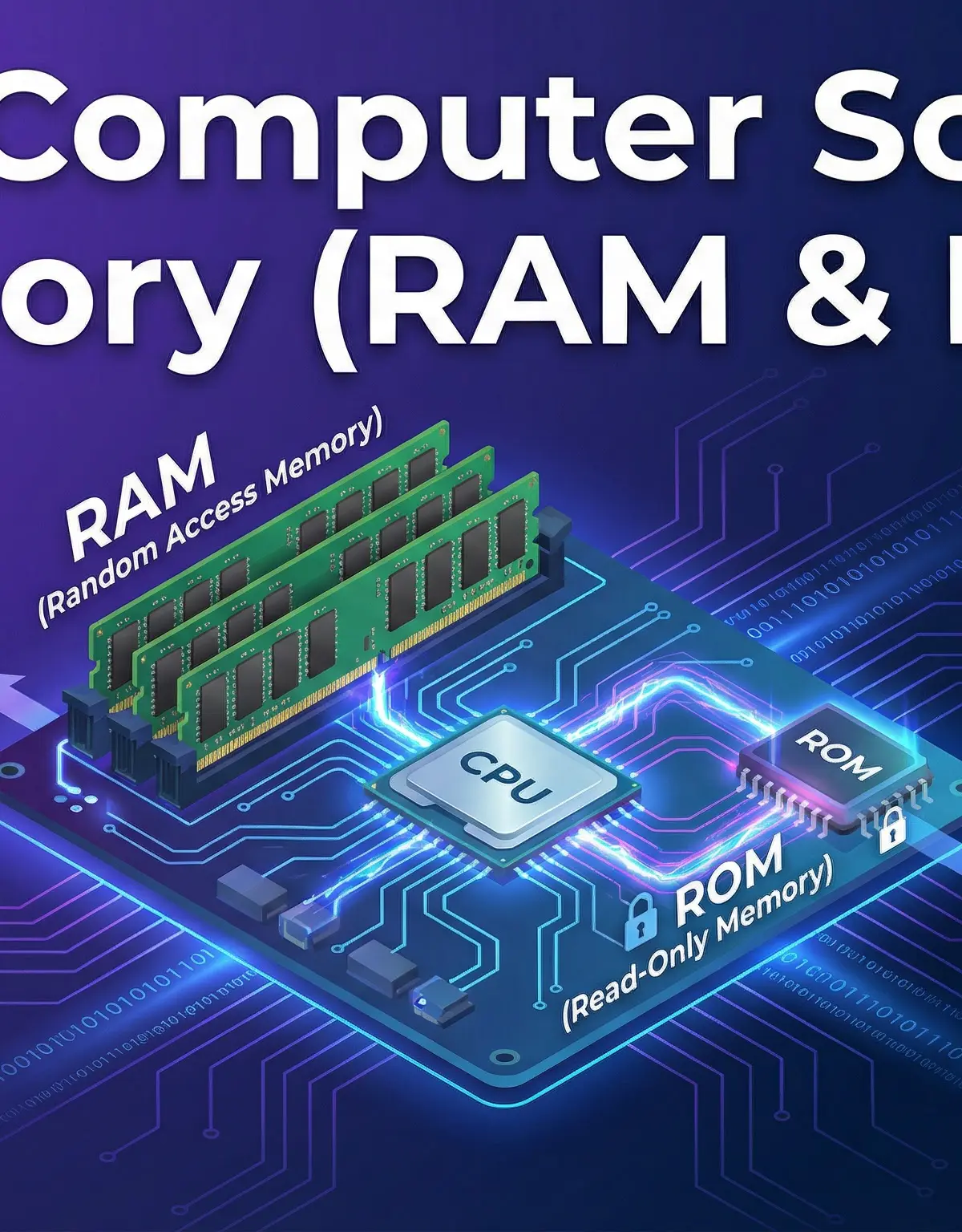
    Header image for Memory (RAM & ROM)

    Key Concepts

    Concept 1: RAM (Random Access Memory)

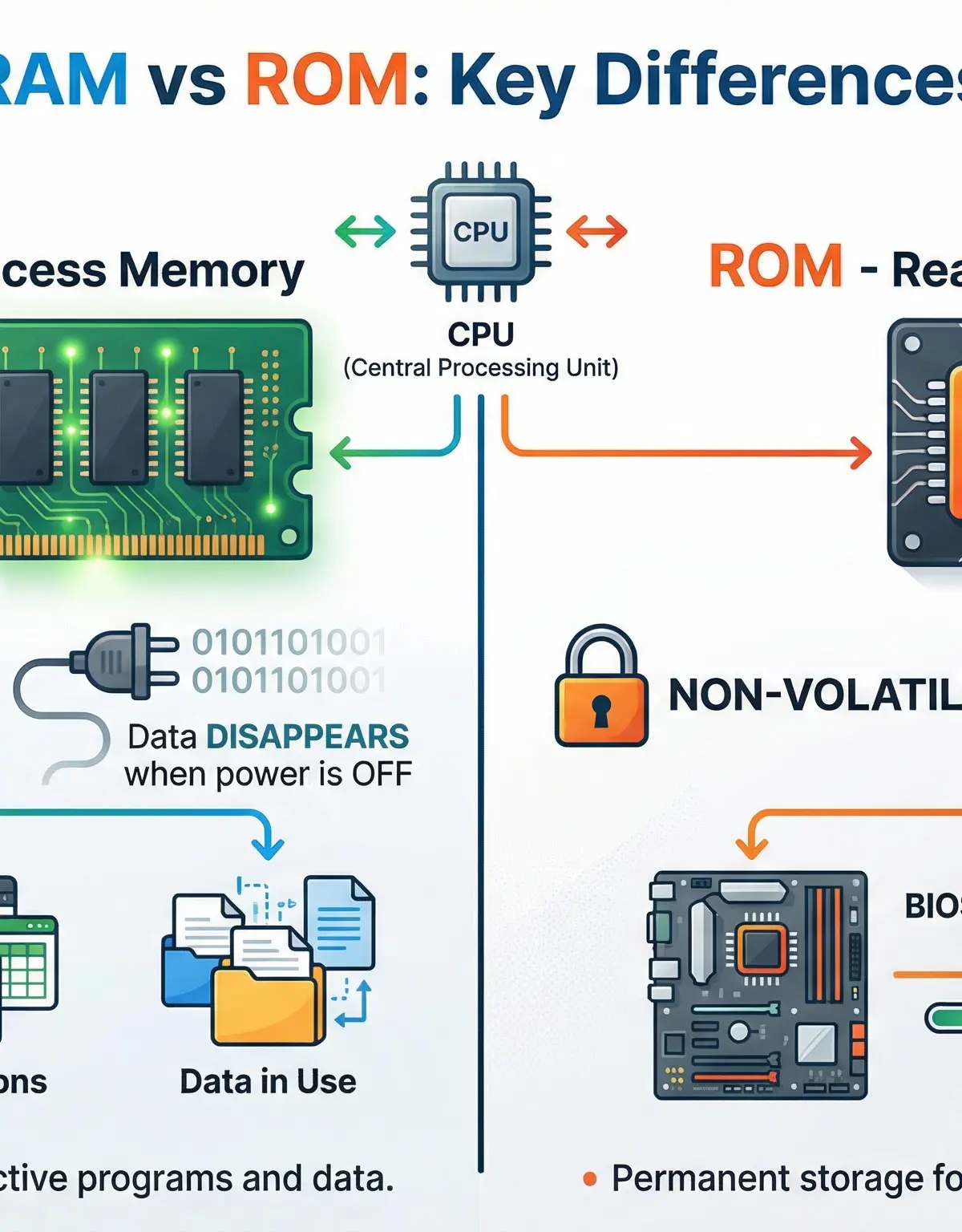
    RAM is the computer's main workspace. Think of it as a busy workbench where a craftsman (the CPU) keeps the tools and materials (data and programs) they are actively using. When you open an application like a word processor or a web browser, it is loaded from the much slower secondary storage (like a hard drive) into the super-fast RAM so the CPU can access it instantly.

    The most critical characteristic of RAM, and a guaranteed exam point, is that it is volatile. This means that as soon as the computer loses power, everything stored in RAM is wiped clean. It's a temporary, high-speed holding area. Credit is given for answers that specifically state RAM stores the Operating System, currently running applications, and the data they are using.

    Example: You are editing a photo. The photo file itself is on your hard drive. But the photo editing software, the photo itself, and every change you make (like adjusting brightness) are all held in RAM. If the power cuts before you save, those changes are lost because RAM is volatile.
    RAM vs ROM: Key Differences

    Concept 2: ROM (Read-Only Memory)

    ROM is the computer's permanent instruction manual. Unlike RAM, it is non-volatile, meaning its contents are not erased when the power is turned off. You can only read the instructions from it; you cannot normally write new ones.

    Its primary, and most crucial, role is to store the BIOS (Basic Input/Output System) or bootstrap loader. This is the very first program the CPU runs when you turn the computer on. The BIOS performs a quick self-test of the hardware (called the POST - Power-On Self-Test) and then provides the instructions to load the main operating system from the secondary storage device into RAM. Without ROM, the computer wouldn't know how to start up. Examiners award marks for specifically mentioning the BIOS or bootstrap loader, not just 'startup files'.

    Example: When you press the power button on your computer, the CPU immediately starts reading instructions from the ROM chip. These instructions tell it to check if the keyboard is connected, how much RAM is installed, and then, crucially, where to find the operating system (e.g., Windows or macOS) on the hard drive to begin loading it.

    Concept 3: Virtual Memory

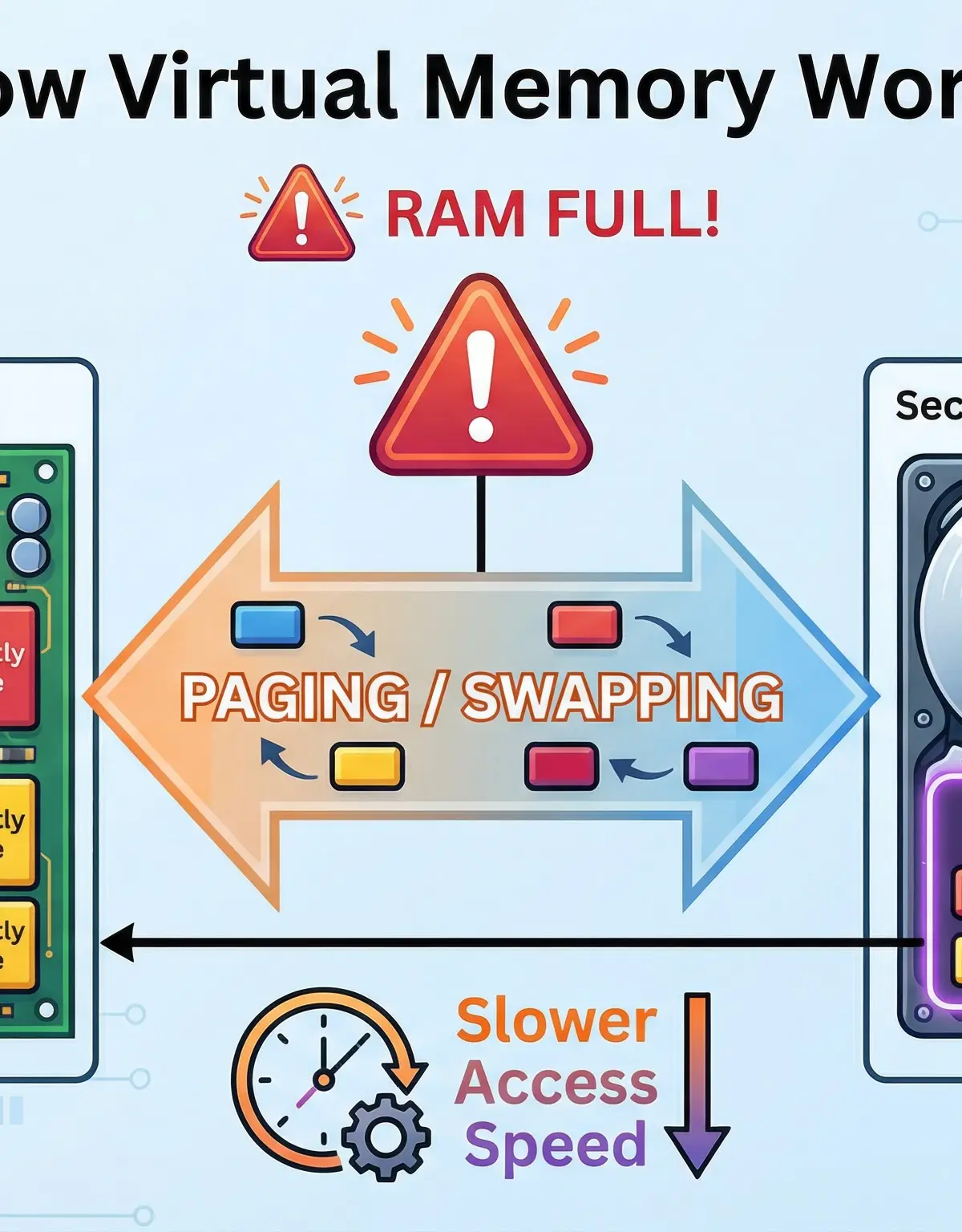
    What happens when your workbench (RAM) is completely full of tools and materials, but you need to get another one out? You could just give up (the computer crashes), or you could find a temporary overflow space. This is exactly what Virtual Memory does.

    When the physical RAM is completely full, the operating system selects a portion of secondary storage (usually the hard drive or SSD) to use as a temporary extension of RAM. Data that is in RAM but not being actively used (for example, a background application you haven't touched for a while) is moved to this virtual memory area on the hard drive. This process is called paging or swapping. This frees up space in the physical RAM for the new data that is immediately needed.

    The major drawback is that secondary storage is significantly slower than RAM. Therefore, when the system has to constantly swap data back and forth between RAM and virtual memory (a situation known as 'disk thrashing'), the computer's performance will slow down noticeably. It's a mechanism to prevent crashes, not to increase speed.
    How Virtual Memory Works

    Mathematical/Scientific Relationships

    While there are no specific formulas for this topic, understanding the speed relationship is crucial:

    RAM access speed vs Secondary Storage access speed: RAM is typically measured in nanoseconds (billionths of a second), while hard drives are measured in milliseconds (thousandths of a second). This means RAM is approximately 100,000 times faster than a traditional hard drive. Even modern SSDs, while much faster than hard drives, are still significantly slower than RAM. This speed difference is why virtual memory causes performance degradation.

    Practical Applications

    Real-World Scenario 1: Gaming PerformanceWhen you play a modern video game, the game's core files are stored on your hard drive or SSD. However, when you launch the game, the game engine, textures, character models, and level data are all loaded into RAM. If your system doesn't have enough RAM, the game will use virtual memory, causing stuttering and lag as data is constantly swapped to and from the hard drive.

    Real-World Scenario 2: Smartphone Boot-UpWhen you turn on your smartphone, the process is identical to a desktop computer. The ROM contains the firmware and bootstrap instructions. These instructions load the mobile operating system (iOS or Android) from the phone's flash storage into RAM, making the phone ready to use.

    Real-World Scenario 3: Server UptimeServers in data centers are designed to run 24/7 without interruption. They rely on non-volatile ROM to ensure that even if there's a brief power interruption, the system can reboot automatically using the BIOS instructions stored in ROM.

    GCSE Computer Science Podcast: Memory (RAM & ROM)

    Visual Resources

    2 diagrams and illustrations

    RAM vs ROM: Key Differences
    RAM vs ROM: Key Differences
    How Virtual Memory Works
    How Virtual Memory Works

    Interactive Diagrams

    2 interactive diagrams to visualise key concepts

    The boot-up sequence of a computer, showing the crucial role of ROM in loading the Operating System into RAM.

    A concept map showing how data is swapped from a full RAM to Virtual Memory to free up space for new applications.

    Worked Examples

    4 detailed examples with solutions and examiner commentary

    Practice Questions

    Test your understanding — click to reveal model answers

    Q1

    State what is meant by the term 'volatile'. [1 mark]

    1 marks
    foundation

    Hint: Think about what happens to your work if the power goes out before you save.

    Q2

    Describe the purpose of ROM in a computer system. [2 marks]

    2 marks
    standard

    Hint: What is the very first thing a computer needs to do when you press the power button?

    Q3

    Explain two reasons why a computer needs RAM. [4 marks]

    4 marks
    standard

    Hint: Think about where the OS and your open programs need to be for the CPU to access them quickly.

    Q4

    A computer user complains of poor performance. A technician notes that the hard disk activity light is constantly flashing. Explain what is likely causing this issue. [3 marks]

    3 marks
    challenging

    Hint: What process involves frequent reading and writing to the hard disk and is related to memory?

    Q5

    A smartphone is a computer system. Describe how RAM and ROM are likely used within it. [4 marks]

    4 marks
    challenging

    Hint: Apply the core principles of RAM and ROM to the context of a mobile device.

    Q6

    Compare the volatility of RAM and ROM. [2 marks]

    2 marks
    foundation

    Hint: What happens to the data in each when the power is turned off?

    Key Terms

    Essential vocabulary to know