OCR · GCSE · Computer Science
Storage Devices (Hard Drives, SSDs, USBs)
This guide provides a comprehensive, exam-focused breakdown of OCR GCSE Computer Science Topic 1.3: Storage Devices. It covers the essential knowledge of primary vs. secondary storage, compares the key characteristics of HDDs, SSDs, and USB drives, and provides step-by-step guidance for crucial file size calculations to help you secure maximum marks."
- 6 min read
- 3 worked examples
- 5 practice questions
Study Notes
Overview
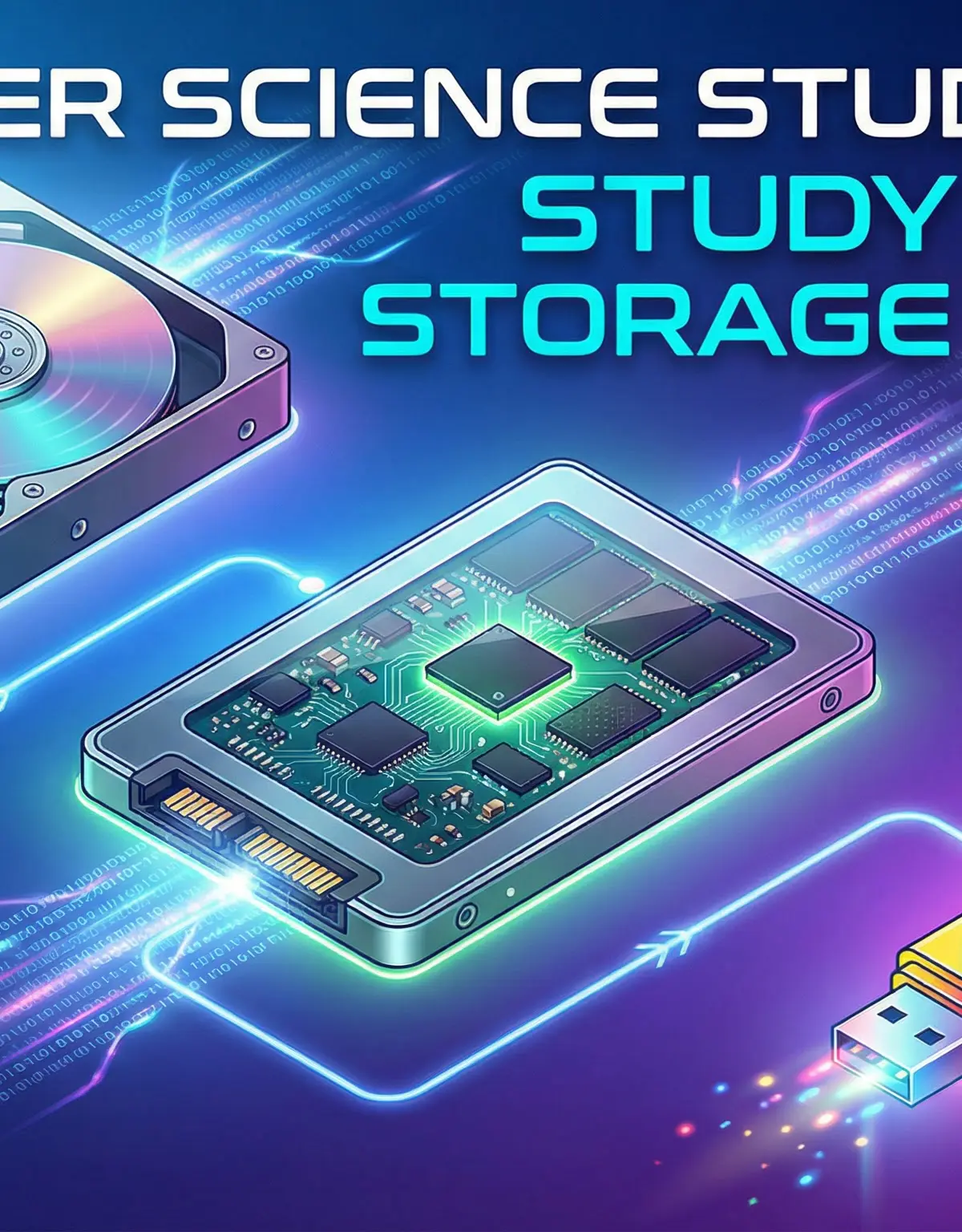
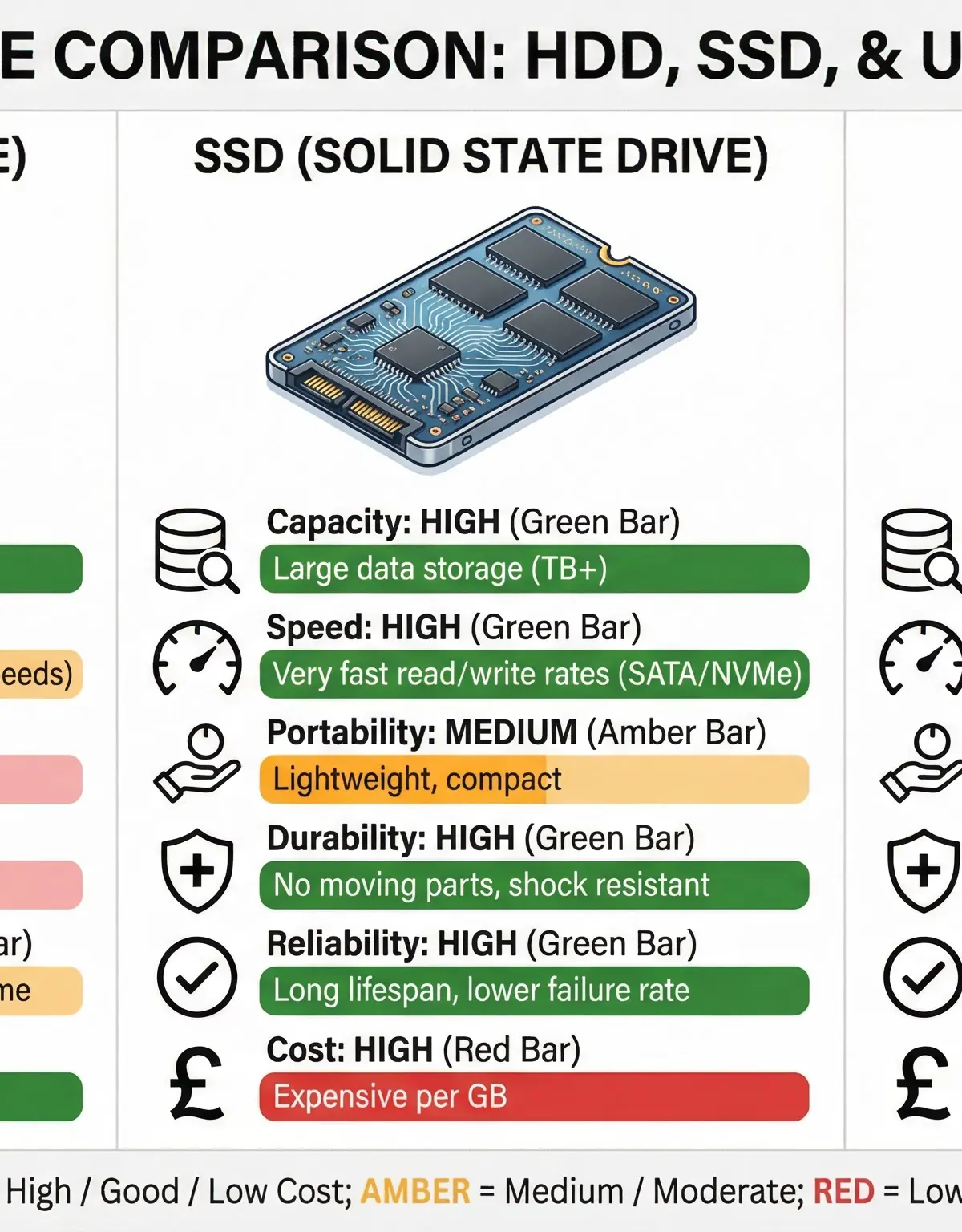
Welcome to the definitive guide for Topic 1.3: Storage. In the world of computer science, data is everything, and how we store it is fundamental. This topic explores the different types of storage, focusing on the distinction between primary storage (like RAM) and the secondary storage devices that hold our data permanently. You will learn about the inner workings of magnetic Hard Disk Drives (HDDs), lightning-fast Solid-State Drives (SSDs), and portable USB flash drives. Understanding their characteristics—Speed, Capacity, Portability, Durability, Reliability, and Cost—is essential, as examiners frequently ask you to compare them and justify the use of one over another in a given scenario. This topic has strong synoptic links to file size calculations (Topic 1.2) and is a cornerstone of understanding how a computer system functions.
Key Concepts
Concept 1: Primary vs. Secondary Storage
At the heart of this topic is the difference between primary and secondary storage. Primary storage, most commonly RAM (Random Access Memory), is the computer's main memory. It is volatile, meaning it requires power to maintain the information stored within it; when you turn the computer off, the contents of RAM are lost. It provides very fast access to data and is used to hold the operating system, applications, and data currently in use. Think of it as the computer's short-term memory.
Secondary storage, on the other hand, is non-volatile. This is a critical term that will earn you marks. It means the storage medium retains its data even without power. This is where you permanently save your files, applications, and operating system. Examples include HDDs, SSDs, and USB drives. It is slower to access than primary storage but offers much larger capacity at a lower cost. Think of it as the computer's long-term memory or filing cabinet.
Concept 2: Magnetic, Solid-State, and Optical Storage
There are three main technologies used for secondary storage:
-
Magnetic Storage (e.g., Hard Disk Drive - HDD): This technology uses spinning magnetic platters and a moving read/write head to store data by altering the magnetic properties of tiny particles on the disk's surface. HDDs are known for their high capacity and low cost per gigabyte, making them ideal for storing large amounts of data like video libraries or backups. However, the mechanical moving parts make them slower, less durable, and more susceptible to damage from physical shock.
-
Solid-State Storage (e.g., Solid-State Drive - SSD, USB Flash Drive): This technology uses flash memory chips (NAND gates) to store data electronically. There are no moving parts. This makes solid-state devices significantly faster, more durable, more portable, and more reliable than magnetic drives. They are the standard choice for operating systems and applications to ensure fast boot times and performance. The main drawback is their higher cost per gigabyte compared to HDDs.
-
Optical Storage (e.g., CD, DVD, Blu-Ray): This technology uses a laser to read and write data from a spinning disc. Data is stored as a series of microscopic pits and lands on the disc's surface. While once common, optical storage is now largely outdated for general computing due to its limited capacity, slow speeds, and the rise of faster, higher-capacity alternatives. It is still used for software distribution, film, and long-term archival storage.
Mathematical/Scientific Relationships
Calculating file sizes is a common exam task that combines your knowledge of storage units and binary. The key is to be methodical and show your working.
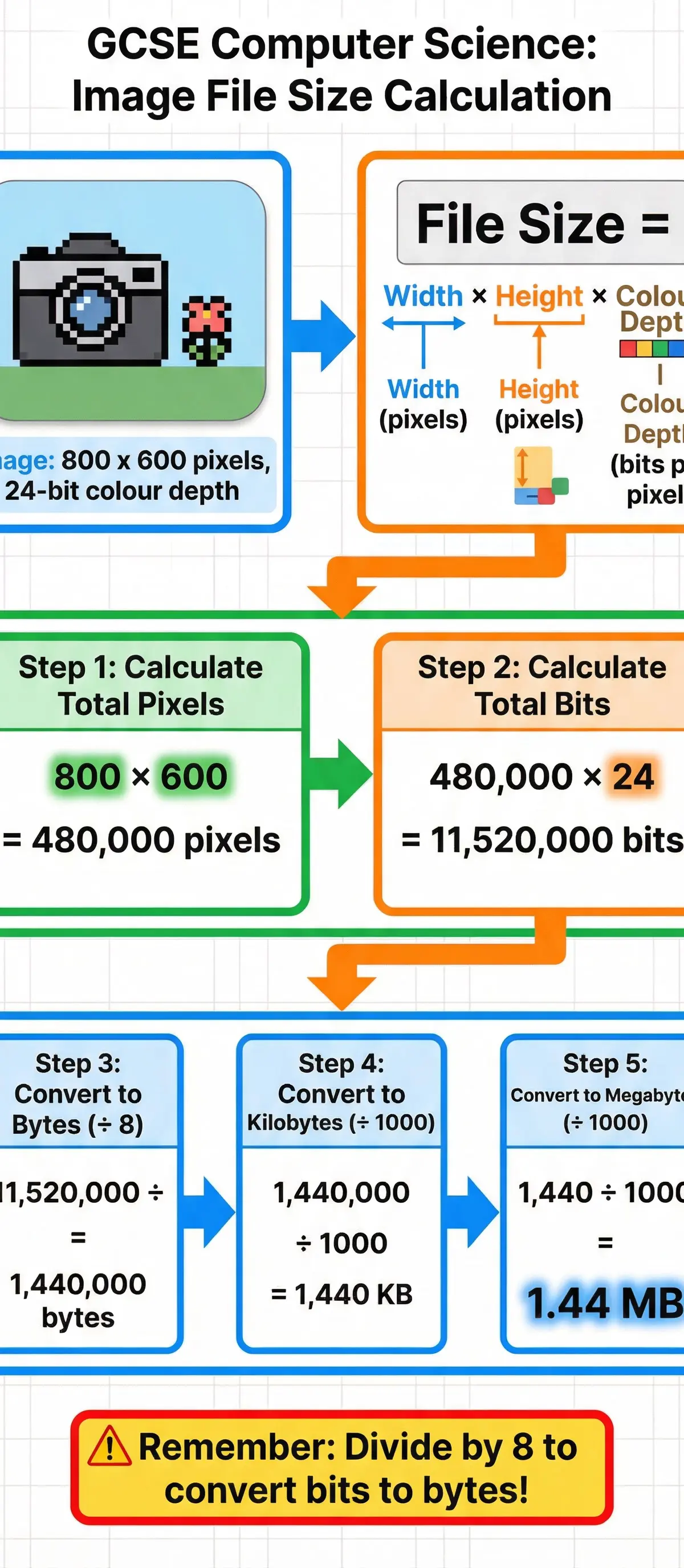
Formula 1: Image File Size (Must memorise)
Image File Size (in bits) = Image Width (in pixels) × Image Height (in pixels) × Colour Depth (in bits)
- Width & Height: The dimensions of the image in pixels.
- Colour Depth: The number of bits used to represent the colour of a single pixel. Common values are 8-bit (256 colours), 16-bit (65,536 colours), and 24-bit (True Colour, ~16.7 million colours).
Formula 2: Sound File Size (Must memorise)
Sound File Size (in bits) = Sample Rate (in Hz) × Duration (in seconds) × Bit Depth
- Sample Rate: The number of times per second the sound wave is measured (e.g., 44,100 Hz for CD quality).
- Duration: The length of the audio clip in seconds.
- Bit Depth: The number of bits used to store each sample.
Unit Conversions (Crucial for Marks)
Examiners will try to catch you out on unit conversions. Remember these rules:
- Bits to Bytes:
1 Byte = 8 Bits. To convert bits to bytes, you must divide by 8. - Bytes, Kilobytes, Megabytes, Gigabytes, Terabytes: For the OCR GCSE specification, you use the decimal (base 10) conversion factor:
1 Kilobyte (KB) = 1000 Bytes1 Megabyte (MB) = 1000 Kilobytes1 Gigabyte (GB) = 1000 Megabytes1 Terabyte (TB) = 1000 Gigabytes
Examiner Note: While in other contexts you might see the binary (base 2) conversion (1 KB = 1024 Bytes), the OCR J277 specification explicitly uses the 1000-based multiples. Using 1024 will likely result in losing marks.
Practical Applications
- Operating System Storage: A PC or laptop will typically use an SSD to store the operating system. This is justified by the need for high read/write speeds to ensure fast boot times and quick application loading. Durability is also a factor for laptops.
- Large Media Libraries: A user with a vast collection of high-definition films would likely use a large-capacity HDD. The lower cost per terabyte makes it the most economical choice for storing many large files where access speed is not the primary concern.
- Transferring Schoolwork: A student needing to move a presentation from their home computer to a school computer would use a USB flash drive. Its high portability, durability (no moving parts), and universal compatibility make it the most suitable device for this task."
Worked Examples
3 worked examples — open one to explore the question and available guidance.
Practice Questions
Test your understanding — click to reveal model answers
State three characteristics of secondary storage. [3 marks]
Hint: Think about why you need it and how it differs from RAM.
A video game console is fitted with a 1TB hard disk drive. Describe two reasons why a solid-state drive might be a better choice for the console's primary storage. [4 marks]
Hint: Think about the user experience when loading games.
Calculate the file size, in Megabytes (MB), of a 5-minute sound file that has a sample rate of 44,100 Hz and a bit depth of 16. Show your working. [4 marks]",
"marks": 4
A photographer is choosing a storage device to back up their entire life's work of photos, totalling around 8TB. They will store the device at home and only access it occasionally. Justify the most suitable storage device for this purpose. [3 marks]",
"marks": 3
Compare the characteristics of magnetic storage and solid-state storage. [4 marks]