OCR · GCSE · Computer Science
System Software (Operating Systems, Utilities)
Unlock top marks in your OCR GCSE Computer Science exam by mastering System Software. This guide breaks down the essential roles of the Operating System and vital Utility Software, giving you the focused knowledge and exam technique to confidently answer any question on topic 1.5.
- 6 min read
- 3 worked examples
- 5 practice questions
- 6 key terms
Study Notes
Overview
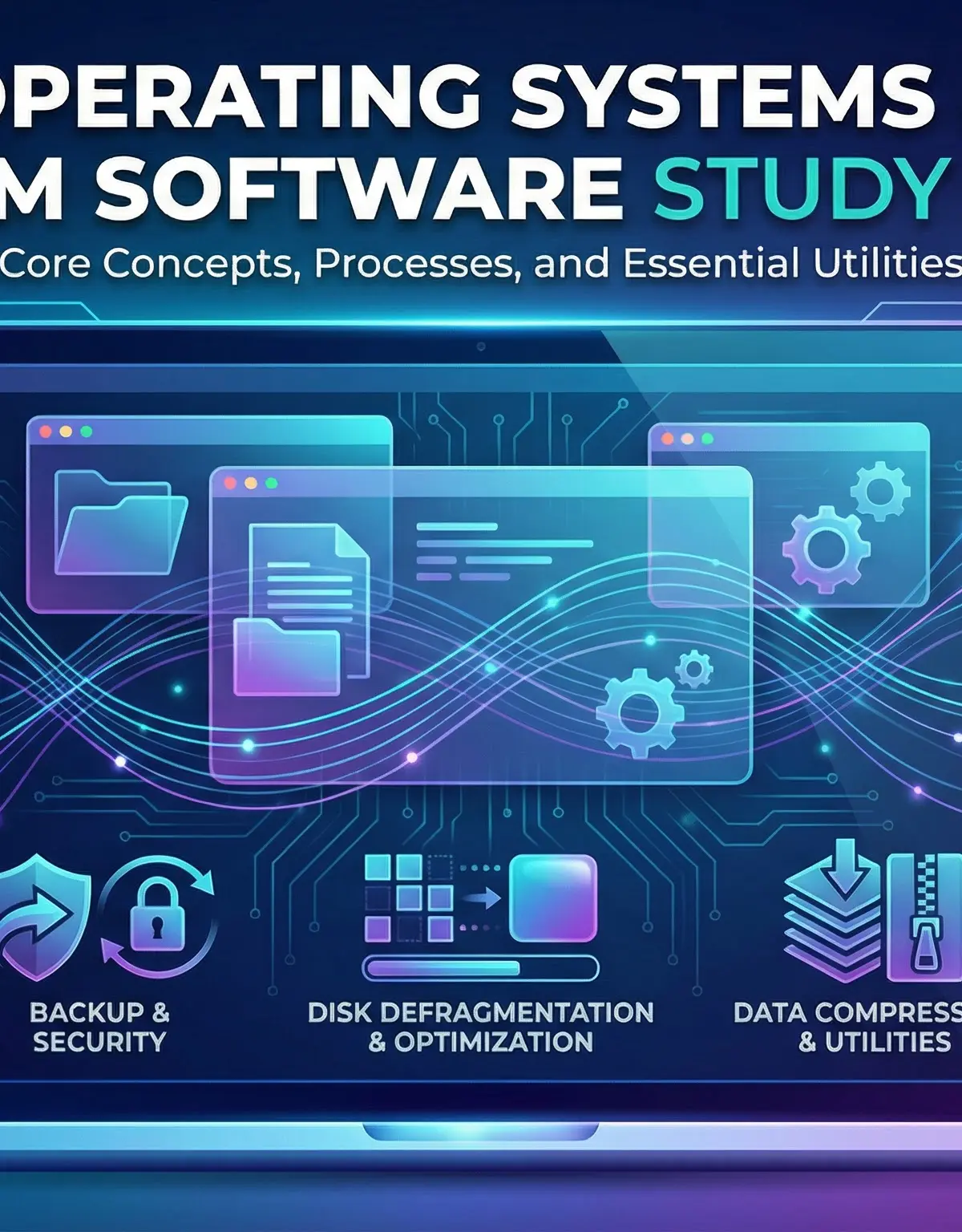
System Software is the engine of your computer, working silently in the background to manage everything from your hardware to the applications you use every day. For your OCR J277 exam, this topic is divided into two key areas: the Operating System (OS) and Utility Software. Understanding the precise functions of the OS—how it manages peripherals, memory, users, processors, and files—is crucial for earning marks. Similarly, you must be able to explain the purpose and process of key utilities like defragmentation, backups, and compression. Examiners frequently test this area with scenario-based questions, asking you to apply your knowledge to a given situation. This guide will provide the detailed concepts, examples, and exam strategies needed to master this fundamental area of computer science.
Key Concepts
Concept 1: The Role of the Operating System
The Operating System (OS) is the most important software on a computer. Its primary job is to act as an intermediary between the computer hardware and the user, managing resources and providing a platform for applications to run. Think of it as the conductor of an orchestra, ensuring every instrument (hardware component) plays in harmony. For your exam, you must be able to define the OS as software that manages hardware and runs application software.
Concept 2: The Five Management Functions of the OS
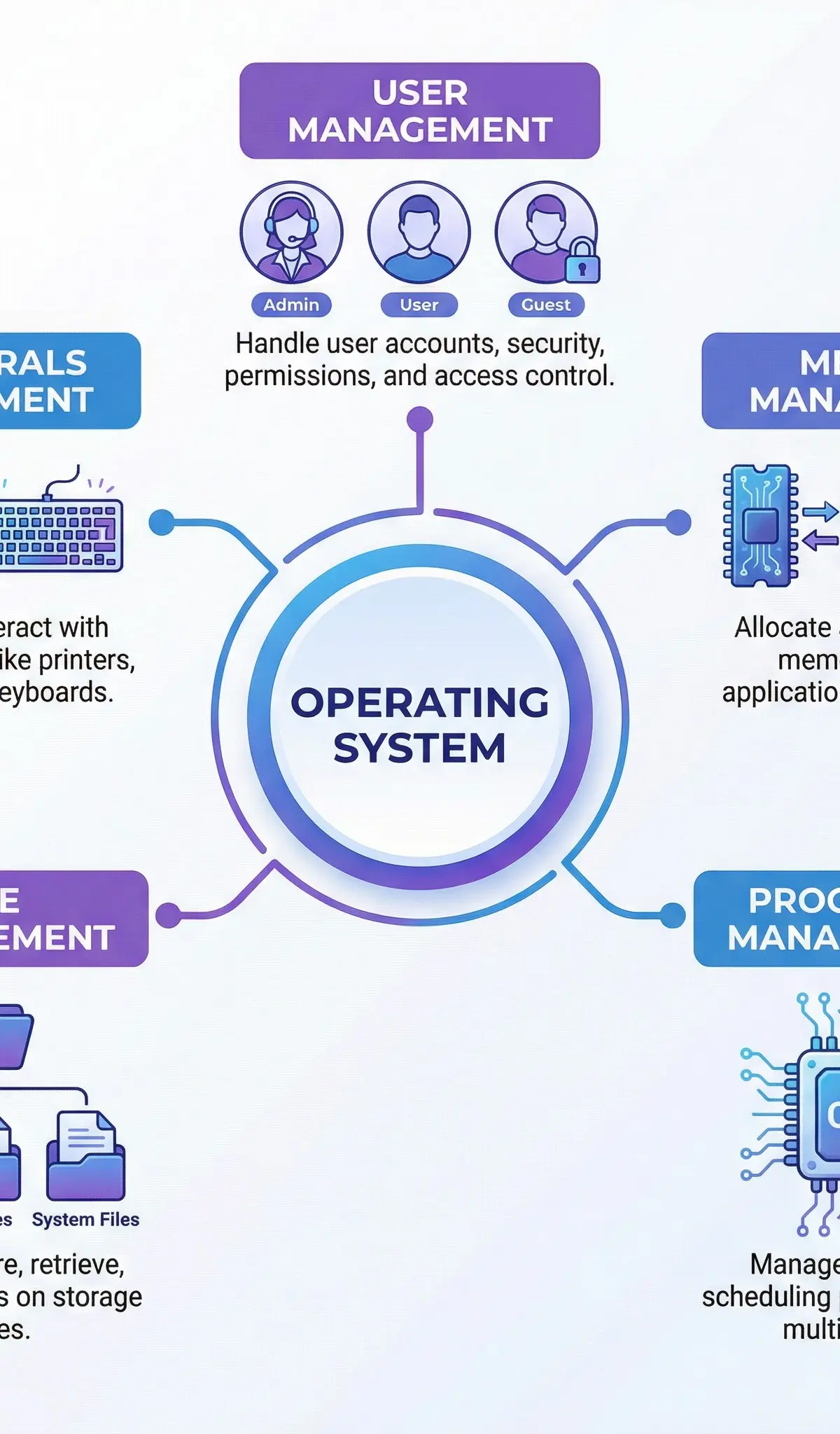
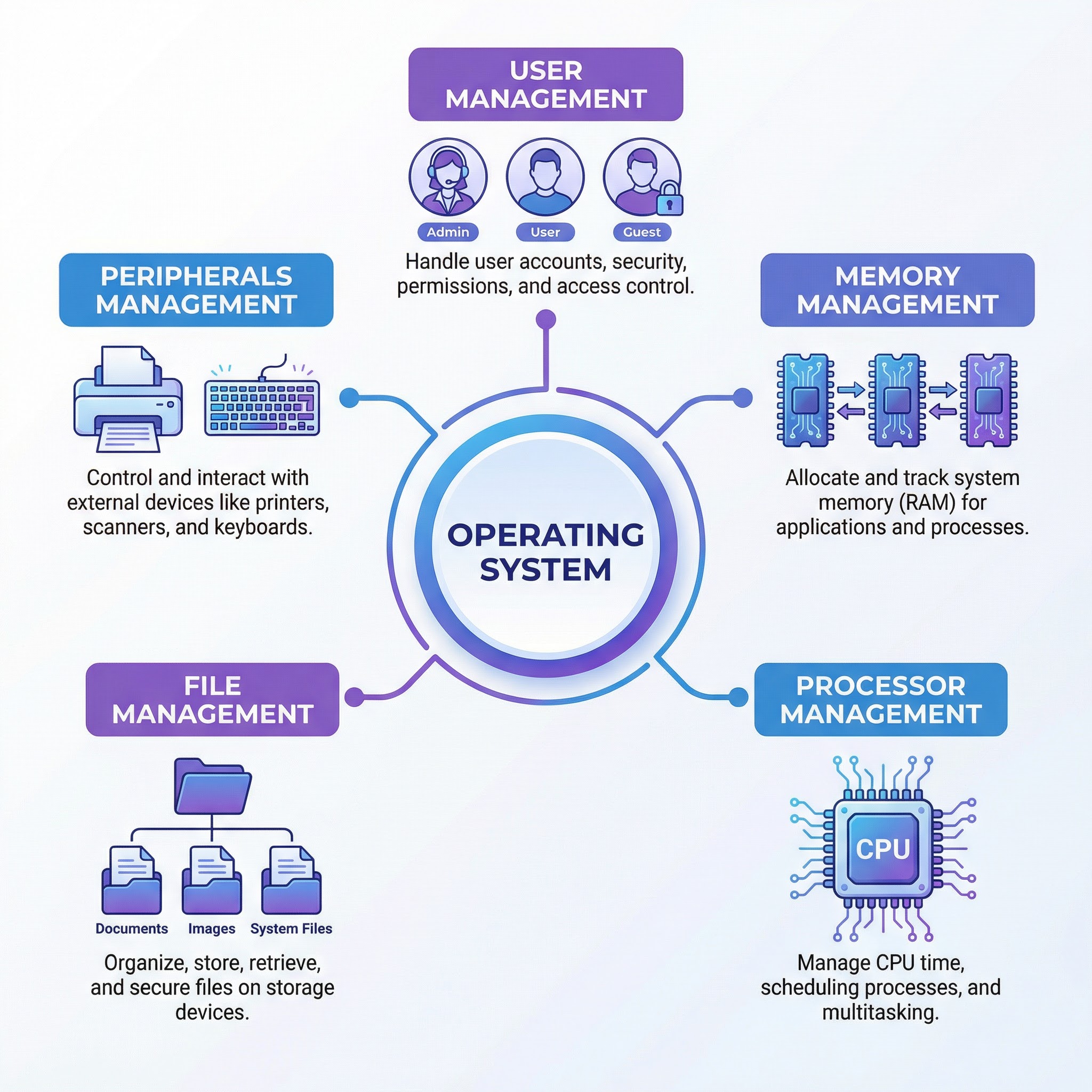
To earn full credit, you need to describe the specific management functions of the OS. The mnemonic PUMPF is an excellent way to remember them:
- P - Peripheral Management: The OS manages all input/output devices connected to the computer, such as printers, keyboards, and mice. It uses special programs called device drivers to translate generic commands from the OS into specific instructions that a particular hardware device can understand. Without the correct driver, the hardware is useless.
- U - User Management: The OS is responsible for managing user accounts. This includes authentication (checking usernames and passwords), setting access rights and permissions to prevent users from accessing each other's files, and managing individual user settings.
- M - Memory Management: When you run a program, the OS allocates a portion of RAM (Random Access Memory) to it. It ensures that the memory allocated to one program does not interfere with another. When the program is closed, the OS reclaims the memory, making it available for other tasks. This prevents crashes and ensures efficient use of a limited resource.
- P - Processor Management (Multitasking): On a computer with a single CPU core, multitasking is an illusion created by the OS. The OS allocates very short periods of processor time, called 'time slices', to each running process. It switches between these processes so rapidly that it appears they are all running at the same time. Candidates often lose marks by confusing this with parallel processing, which requires multiple CPU cores.
- F - File Management: The OS is responsible for the file system on a storage device. It manages the creation, naming, saving, moving, and deletion of files and folders. It keeps track of the physical location of all files, even when they are split into multiple parts (fragments).
Concept 3: User Interfaces
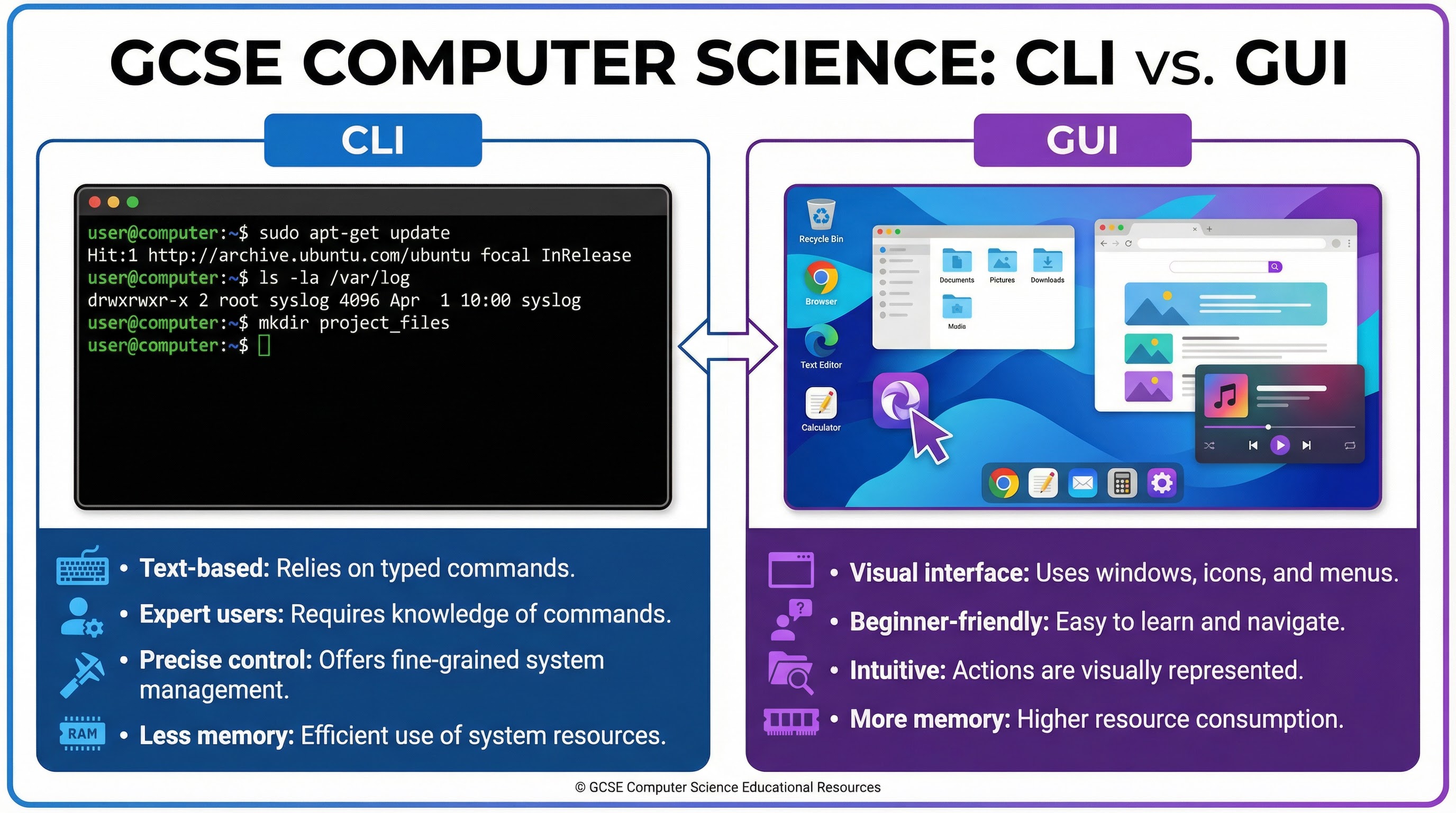
The OS provides a user interface (UI) to allow humans to interact with the computer. There are two main types you need to compare:
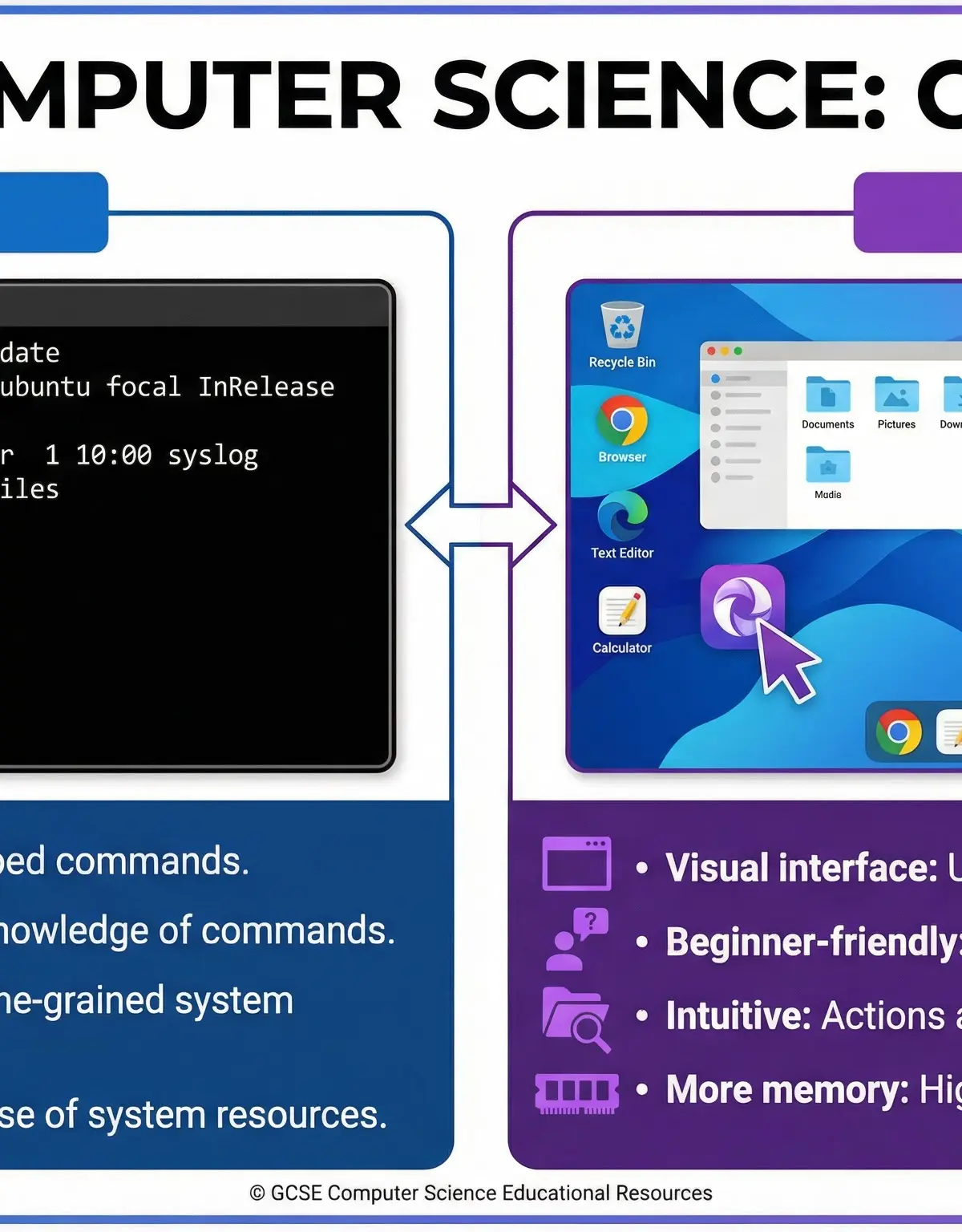
- Command Line Interface (CLI): This is a text-based interface where the user types commands to instruct the computer. It is very powerful and resource-efficient (uses less RAM and CPU) but requires the user to learn specific commands, making it difficult for beginners. It is favoured by technical users like network administrators and developers.
- Graphical User Interface (GUI): This is the visual interface most users are familiar with, using WIMP (Windows, Icons, Menus, Pointer). It is intuitive and easy to learn but requires significantly more system resources to run.
Concept 4: Utility Software
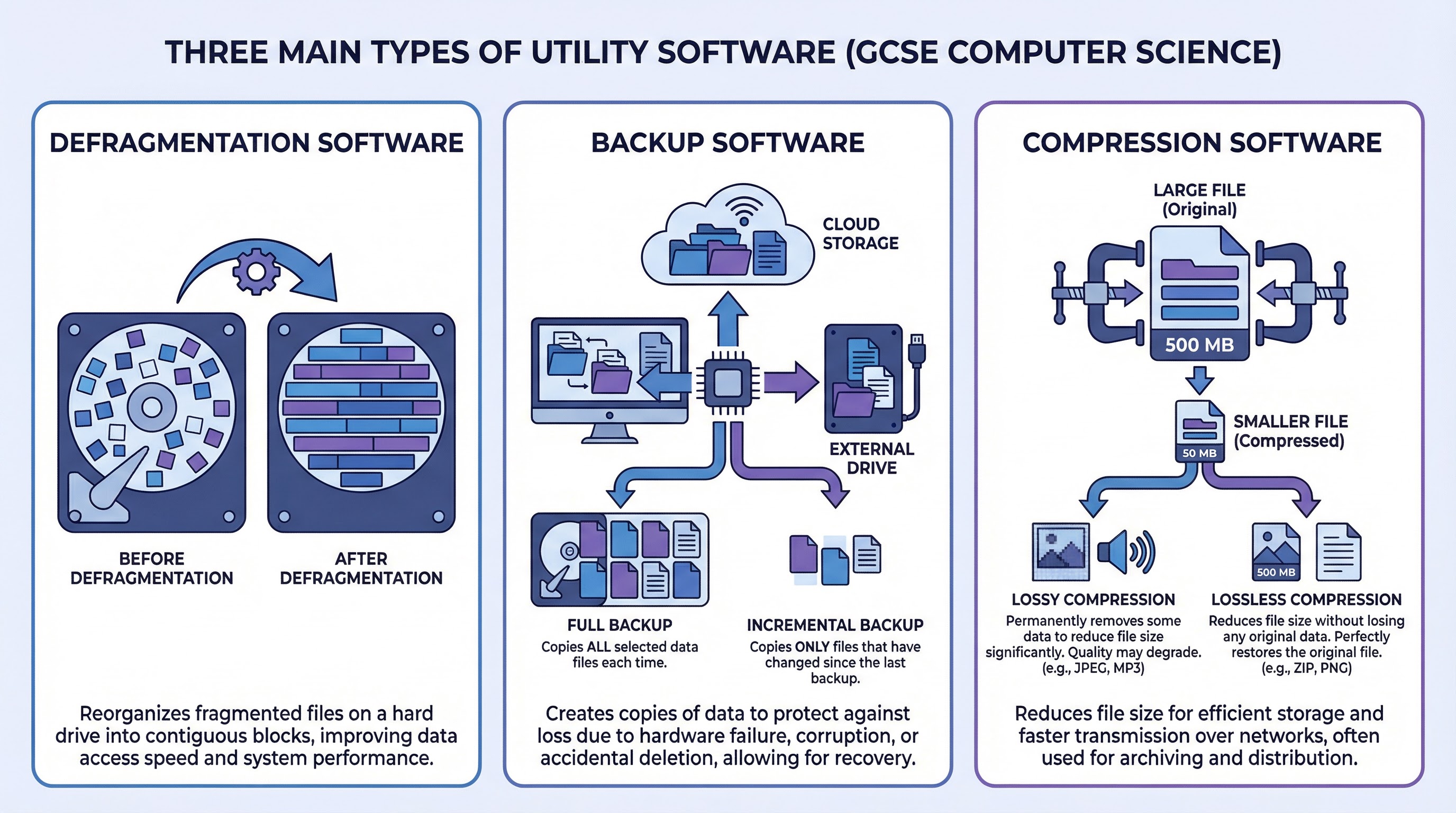
Utility software helps to maintain and configure a computer system. These are not part of the core OS but are essential for keeping the system running smoothly. You must know three key types:
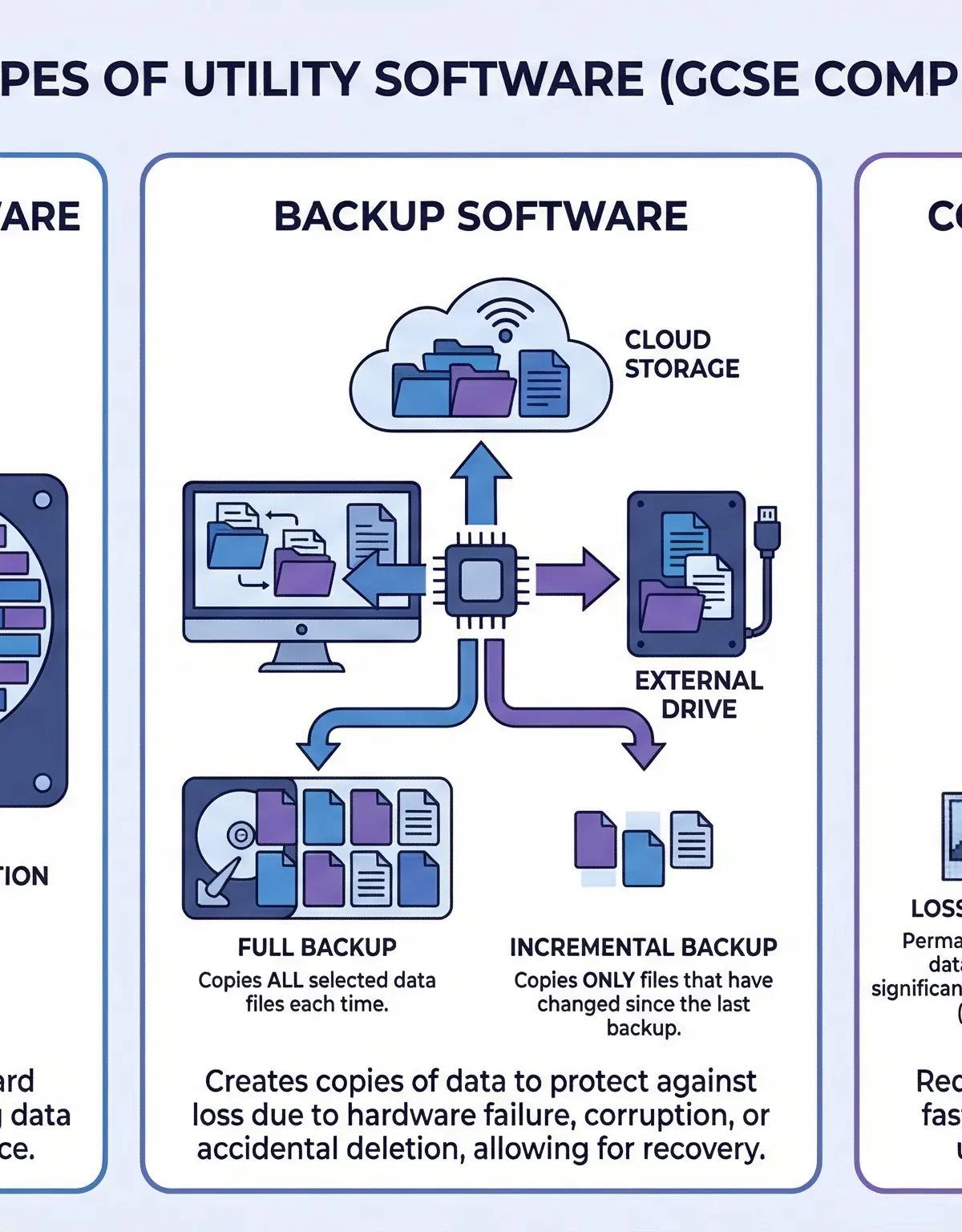
- Defragmentation: Over time, as files are saved, deleted, and modified, large files can become fragmented (split into blocks and stored in non-contiguous locations on the hard disk). This slows down file access as the read/write head has to move to different locations to retrieve all the parts of the file. Defragmentation software reorganises the disk by putting all the fragments of each file back together and consolidating all the free space. Crucial exam point: Defragmentation does not create more free space; it only organises existing files and free space more efficiently.
- Backup Software: This utility creates a copy of files and data to be used in the event of data loss. You need to compare two methods:
- Full Backup: Copies all selected data. It is slow to create and uses a lot of storage space, but it is very fast to restore from because you only need one backup set.
- Incremental Backup: Only copies the files that have been changed since the last backup. It is much faster to create and uses less storage. However, restoration is slower as it requires the last full backup plus all subsequent incremental backups.
- Compression Software: This utility reduces the size of files so they take up less disk space and are faster to transmit over a network. There are two types:
- Lossless Compression: Reduces file size without removing any data. The original file can be perfectly restored. This is essential for text files and program code (e.g., ZIP, PNG).
- Lossy Compression: Makes files much smaller by permanently removing data that humans are unlikely to notice. This is used for multimedia files like images (JPEG), audio (MP3), and video (MPEG). The original quality can never be recovered.
Visual Resources
3 diagrams and illustrations
Interactive Diagrams
2 interactive diagrams to visualise key concepts
Conceptual Flow Outline
A flowchart showing the OS managing memory and processor time when a user runs an application.
Conceptual Flow Outline
A concept map comparing the key characteristics of Full and Incremental backups.
Worked Examples
3 worked examples — open one to explore the question and available guidance.
Practice Questions
Test your understanding — click to reveal model answers
State three functions of a modern Operating System.
Hint: Think about the PUMPF mnemonic.
Describe the purpose of disk defragmentation software.
Hint: What problem does it solve and how does it improve performance?
A user has a 10MB image file that they need to email. Explain how compression software could be used and why 'lossy' compression would be appropriate.
Hint: First, explain what compression does. Then, link the file type (image) to the type of compression.
A computer appears to be running multiple programs (a web browser, a music player, and a word processor) at the same time. Explain how the operating system makes this possible on a single-core CPU.
Hint: This is about processor management. Avoid saying the CPU is doing things 'at the same time'.
Evaluate the use of a GUI over a CLI for a novice computer user.
Hint: Evaluate means you need a conclusion. Weigh up the pros and cons for a *novice* user.